 Customer Support
 Contact Sales

 About
About


Payment Gateways Overview
Overview
Affino supports 9 Payment Gateways, these are:
- Affino (Purchase Order)
- GoCardless
- Pay360 - Hosted
- PayPal - Standard
- Realex Payments
- Sage Pay
- Stripe
- Worldpay
Notes on SSL and PCI Compliance
In today’s digital landscape, it’s essential for all websites to implement SSL encryption—not only does it enhance security, but it also boosts SEO rankings. As a result, SSL should be the default for all websites, especially eCommerce platforms.
Regarding PCI compliance, Affino does not process or store sensitive payment information, such as bank details or card credentials. Transactions are securely handled through external payment gateways, ensuring the safety and privacy of customer data.
Payment Gateway Setup
In order to communicate transactional data between Affino and payment providers, there are a number of security features that need to be configured.
Publishable Keys:
These keys are designed to be shared publicly and are used in the frontend code of your website or app. They allow your users to interact with payment forms and initiate transactions.
Secret Keys:
These keys are designed for server-side use and are not exposed publicly. They are used to make API calls to the payment provider, such as creating charges, issuing refunds, or managing subscriptions.
Webhook Secret:
This key is used to verify the authenticity of events sent by payment providers to your webhook endpoint. Webhooks allow you to receive real-time notifications about events happening on your Stripe account, such as payments, refunds, or subscription changes. The webhook secret key is used to sign the webhook payload, ensuring that it hasn't been tampered with in transit.
Note: Payment Gateways are assigned to Payment Methods, which in turn are applied on Store Profiles.
For specific setup instructions on Stripe, GoCardless, Paypal and Pay360, click on the below links:
Payment Method Setup
Control > Commerce > Payment Methods
In Affino, a Payment Method acts as the bridge between your technical backend (the Payment Gateway) and the actual options your customers see at checkout.
While the Gateway handles the connection to providers like Stripe or PayPal, the Payment Method defines the business rules, appearance, and availability of that option.
Key Functions:
- Customer-Facing Options: It defines the specific "way to pay" shown to buyers, such as Credit Card, Direct Debit, or Purchase Order
- Gateway Binding: Each method is locked to a specific Gateway configuration to ensure payment routes remain stable and secure for existing orders
- Availability Rules: You can control where a method appears by assigning it to specific Store Profiles or individual Catalogue Items
- Smart Filtering: Methods can be restricted based on currency, geography, the number of items in a basket, or specific subscription types
- Subscription Protection: It ensures recurring billing reliability by enforcing "renewable only" workflows and performing health checks to match renewal items with their original providers
- Account Management: It drives downstream logic, such as determining if a user can cancel a subscription via "My Account" or pay through an emailed payment link
Fields and Options:
- Payment Method Name: Enter a Name for this Payment Method
- Gateway: Select Payment Gateway from Options available in drop-down menu
- Store: Select the store or stores that this payment method applies to
- Group Options: Select whether Payment Method can apply to All or Selected (All Groups or Selected Groups)
- Groups: Select the Groups to which this Payment Method will apply.
- Payment Method Type: Select the payment types that this payment method supports. Default it will be presented for all products, however if it can only handle subscriptions and renewable payments then it should be selected as such. Otherwise users will select this as a payment option and then be unable to complete the transaction (All Payments, One-off Payments Only, Renewable Payments Only and Non Renewable Payments, One-Off Payments)
- Geo Filter: Select to restrict access to the payment gateway by region (All countries, Selected countries, All countries except)
- Geo Filter Countries: Select the countries you want to filter by.
- Geo Filter Address: Select to restrict access to the payment gateway by address. If Hide Delivery Address / Hide Delivery If Not Required is selected on the Checkout Profile, the Invoice Address is used instead (Billing Address, Shipping Address. Invoice Address)
- Currency Filter: Filter this payment method by a specific currency. This allows you to use this payment
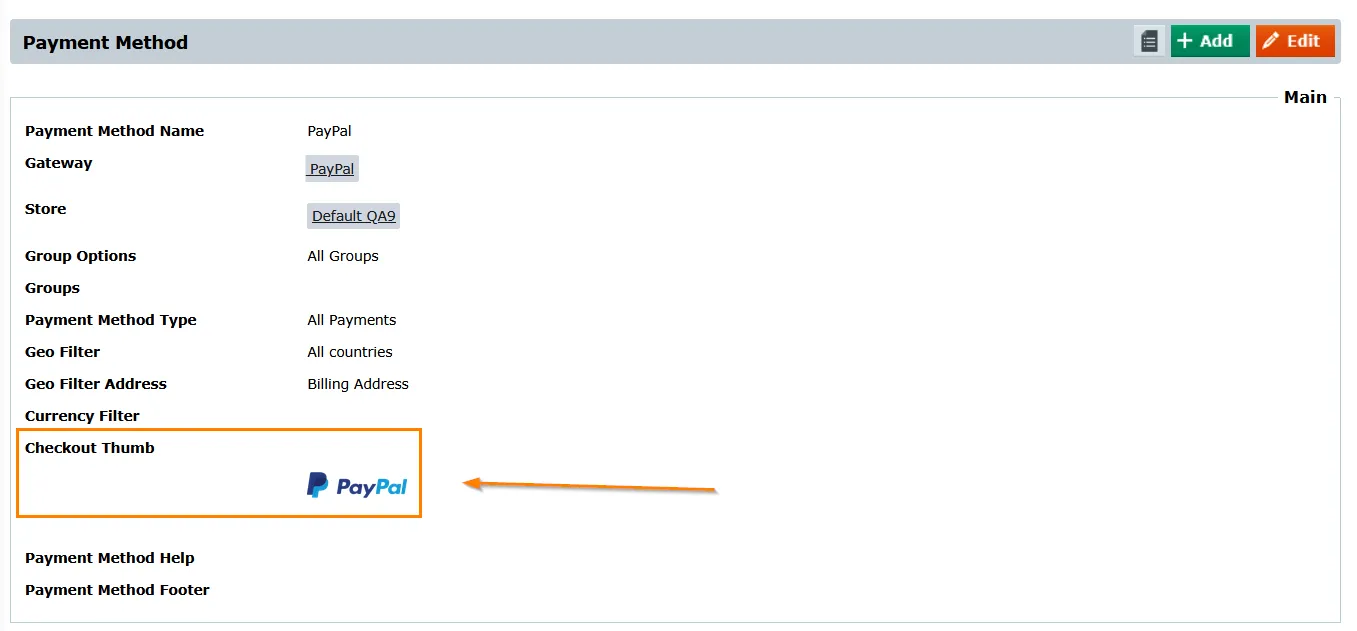
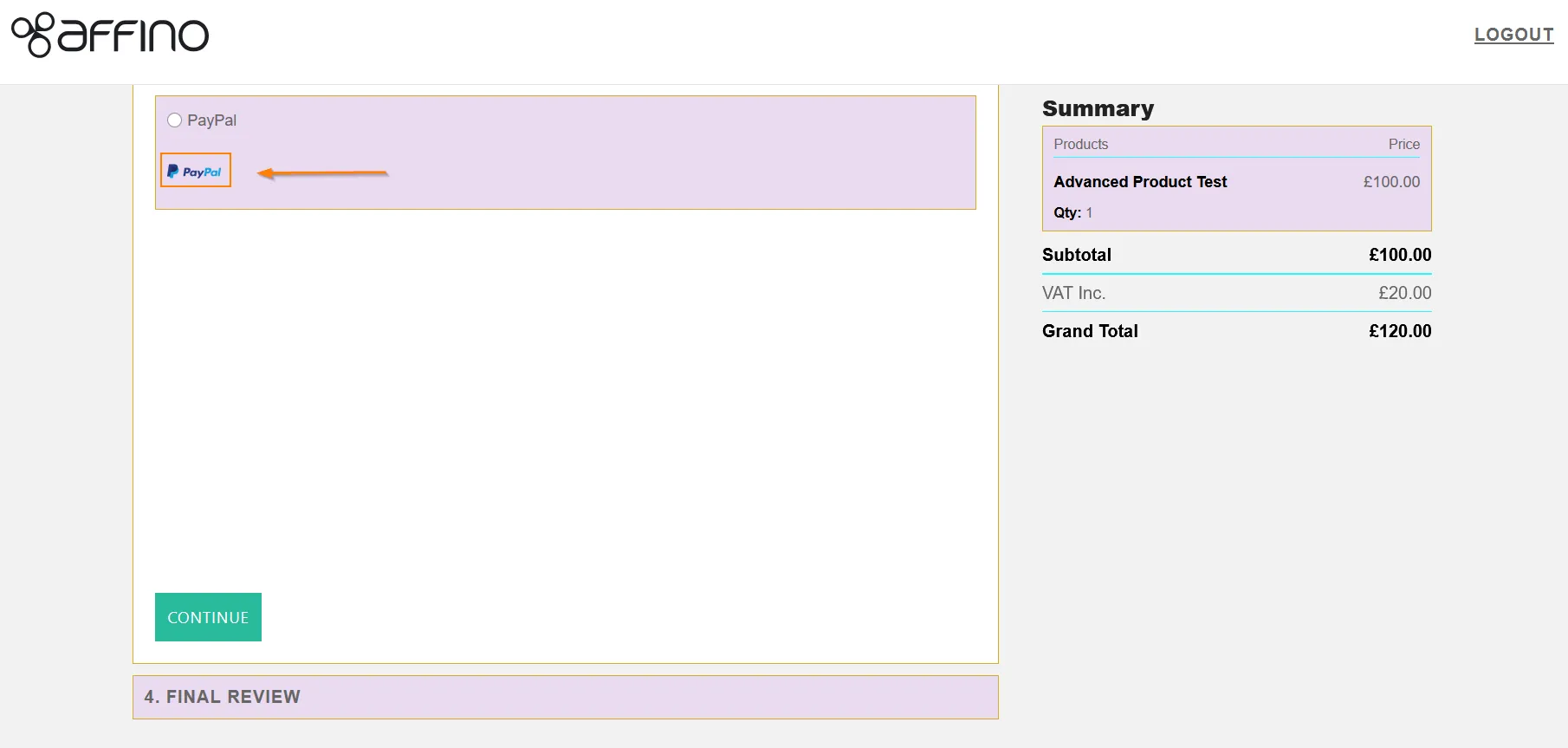
Checkout Thumb - Checkout Thumb: Add the thumb to be displayed in the checkout next to the payment method title
- Payment Method Help: The Payment Method Help appears at the top of the payment method form for in-page payments and is essential for providing guidance for users entering information for the payment method, e.g. for Direct Debits
- Payment Method Footer: The Payment Method Footer appears at the base of the payment method form for in-page payments and is essential for providing additional notices and terms for users entering information for the payment method, e.g. for Direct Debits
- Live: Tick to make this payment method active
Example of the Checkout Thumb:
Troubleshooting / Health Check
The most common issues to do with Payment Gateways are as follows:
- Wrong Credentials - Username | Password | Signature
- Incorrect Run Mode Selected - does not match Licence Key
- Payment Gateway or Payment Method is not set to Live
- Wrong Access Token / Webhook URL / Webhook Secret / API Key
- Wrong Tax Rules, Coupons setup on the Catalogue Item
- No active SSL on Website / Server
On the View screen of each Catalogue Item, you'll find a Health Check panel that provides a set of important checks to help ensure your setup is correct and optimised. These checks include:
No Product Line selected
No Product Category selected
No Payment Method selected
Price is zero
Payment Method not live
Tax Rule Override External ID not present
Renewal Catalogue Item price is zero
- Renewal Catalogue Item not live
- Start Renewal Automation not enabled
Use Renewal Catalogue Item Price And Tax not enabled
External ID not present (required for Stripe)
Subscription Plan not active
Sale End within 1 month
- Live not selected
Reviewing this panel each time you set up a Catalogue Item will greatly enhance your efficiency in ensuring your products are properly configured.
Did you find this content useful?
Thank you for your input
Thank you for your feedback

Driving business at some of the world's most forward thinking companies











Our Chosen Charity


Meetings:
Google Meet and Zoom
Venue:
Soho House, Soho Works +
Registered Office:
55 Bathurst Mews
London, UK
W2 2SB
© Affino 2026