 Customer Support
 Contact Sales

 About
About


Sales and Marketing Automation and Customer Ladder
Overview
The Affino Automated Customer Ladder and its already 55 Conversion Events are far beyond traditional Sales and Marketing Automation. That is a part of the equation, but in truth this is much larger, and more of a total customer engagement system with automated processes which can be daisy-chained together to accomplish the cleverest means of incentivisation, recognition and reward.
Elements and Dependencies
- Channel/s - Various per Conversion Event
- Contact List/s - Populate Contact List with Users who trigger Conversion Events
- Content Subscription/s - Populate Content Subscriptions with Users who trigger Conversion Events
- Icons / Images - for Badge On and Off states
- Integration Script - Script for Custom Actions on Conversion Events
- Items - Various per Conversion Event
- Mailing List - Populate Mailing List with Users who trigger Conversion Events
- Member Types - Selected on Conversion Event
- My Messages - Send Message Prompts to Users who trigger Conversion Events
- Section/s - Various per Conversion Event
- Security Clearance / Rights - Restrict Conversion Events by Content Security Right
- Security Groups - For enabling / restricting triggering of Conversion Events as well as adding or removing users from same
- Store Credits - Enable accrual of Store Credits for triggering Conversion Event
- Topics - per Conversion Event
- User Profile - per Customer Ladder
- Users - for Notification Recipients
- Zone - per Customer Ladder
Related Elements
- Conversion Funnels - Set up Analytics on specific Conversion Event workflows
- Customer Ladder Analysis - In-depth analysis on all Customer Ladder activities
Uses
Beyond Sales, Marketing and Process Automation, Customer Ladder and Conversion Events are often used for additional levels of Customer Tracking and Analytics - so we can break down customer behaviour into very finely monitored and controlled workflows.
Advisory
This system is being evolved and developed all the time, with further Trigger Events added. All Affino sites can benefit hugely by deploying Customer Ladder and Conversion Events. Do note that this is resource heavy, particularly on the logging side, and must be deployed judiciously or data storage costs will increase significantly.
Procedure
Customer Ladder Profiles are very simple to set up, Conversion Events because of their incredible power have an inherent degree of complexity and a number of dependencies with other Affino system components. The process is two-step, although the Second step consists of setting up numerous Conversion Events and we suggest you phase these in. No site out there is deploying all 55 yet, but there are a number of Affino sites which are very advanced in their use of Conversion Events.
1: Create Customer Ladder Profile
- Name - Enter reference Name for this Customer Ladder
- User Profile - Select to which User Profile this Customer Ladder applies
- Engagement Level Timeframe - Enter number of weeks for which member’s activity is accrued within the Customer Ladder - typically set to 52 weeks = 1 year
- Points Timeframe - Enter the number of weeks for which a member’s points are accrued within the Customer Ladder - typically set to 52 weeks = 1 year
- Conversion Events - Select which Conversion Events apply to this Customer Ladder, you can assign Customer Ladder from Converions Events also
2: Add Conversion Event/s
Identifying and Tracking users
Affino identifies and tracks three variants of users:
Unknown users - Users who are navigating through the site as a guest, Affino doesn't know who they are.
Identified users - Users who enters the site from a Message Campaign. They are still navigating the site as a guest but, since they come from a Message Campaign, we know who they are.
Also, Identified users are ones who have agreed the Terms and Conditions which include tracking, so are tracked whether or not they're logged in. this means that most triggers are fired off for identified users whether or not they're logged in.
Authenticated users - Users who have logged into the site.
Conversion events work for Identified and Authenticated users.
For more information, please refer to the FAQ: Do conversion funnels work with guest users?
| Added to Security Group | Identified OR Authenticated |
| Audio Completed | Identified OR Authenticated |
| Audio Played | Identified OR Authenticated |
| Awards Entry | Identified OR Authenticated |
| Birthday | Identified OR Authenticated |
| Bounced Email | Identified OR Authenticated |
| Cancelled attendance | Identified OR Authenticated |
| Cancelled order | Identified OR Authenticated |
| Cancelled Purchase | Identified OR Authenticated |
| Checkout | Identified OR Authenticated |
| Commenting | Identified OR Authenticated |
| Contact Note | Identified OR Authenticated |
| Content Subscription Update | Identified OR Authenticated |
| Content Subscriptions | Identified OR Authenticated |
| Demographic Profile Submission/Update | Identified OR Authenticated |
| Downloads (Channel) | Guests/Identified OR Authenticated |
| Downloads (Media) | Guests/Identified OR Authenticated |
| Downloads (Zone) | Guests/Identified OR Authenticated |
| Ecard | Guests/Identified OR Authenticated |
| Email confirmed | Guests/Identified OR Authenticated |
| Failed access attempt | Identified OR Authenticated |
| Form Entry | Guests/Identified OR Authenticated |
| Form Entry approved | Identified OR Authenticated |
| Form Entry rejected | Identified OR Authenticated |
| Forum Answer | Identified OR Authenticated |
| Forum Post | Identified OR Authenticated |
| Friend Invite | Identified OR Authenticated |
| Guest Visits | Guests |
| Item added to Basket | Identified OR Authenticated |
| Load More | Guests/Identified OR Authenticated |
| Logging In | Identified OR Authenticated |
| Mailing List Signup | Identified OR Authenticated |
| Mailing List Unsubscribe | Identified OR Authenticated |
| Manual Assign (*) | Identified OR Authenticated |
| Media Added to a Channel | Identified OR Authenticated |
| Message Campaign Read | Guests/Identitifed |
| Message Campaign Sent To | Identified OR Authenticated |
| Metering Gate | Guests/Identified OR Authenticated |
| Metering Limit reached | Guests/Identified OR Authenticated |
| My Messages Despatches | Identified OR Authenticated |
| Opportunity Opened | Identified OR Authenticated |
| Opportunity Won | Identified OR Authenticated |
| Password reset | Guests/Identified OR Authenticated |
| Pending User approved | Identified OR Authenticated |
| Pending User rejected | Identified OR Authenticated |
| Permission | Identified OR Authenticated |
| Profile View | Identified OR Authenticated |
| Purchase | Identified OR Authenticated |
| Redirect | Guests/Identified OR Authenticated |
| Registration | Identified OR Authenticated |
| Share | Guests/Identified OR Authenticated |
| Site Search | Guests/Identified OR Authenticated |
| Specific Channel Viewed | Identified OR Authenticated |
| Specific Media Viewed | Identified OR Authenticated |
| Specific Section Viewed | Guests/Identified OR Authenticated |
| Specific Standard Item Viewed | Guests/Identified OR Authenticated |
| Standard Content Added to a Channel | Identified OR Authenticated |
| Standard Item topics | Guests/Identified OR Authenticated |
| Terms & Conditions accepted | Identified OR Authenticated |
| Total Content Views | Guests/Identified OR Authenticated |
| Total Points | Guests/Identified OR Authenticated |
| Updating Profile | Identified OR Authenticated |
| Used Event Credits | Identified OR Authenticated |
| Video Completed | Identified OR Authenticated |
| Video Played | Identified OR Authenticated |
| Zone Views | Guests/Identified OR Authenticated |
Conversion Event fields and options:
- Name - Enter reference Name for Conversion Event
- Customer Ladder - Assign to relevant Customer Ladder/s
- [_] Public - Select for Badges to appear publicly on Public Profiles and Badge Display DEs
- Badge Name - The Public Display Name for the Badge - what the user sees when Badges are Public
- Description - Notes really about purpose and aims for this Conversion Event
- Badge Achieved Icon - Select ’On’ Image for Badge achieved status
- Badge Not-Achieved Icon - Select ’Off’ Image for potential Badge
- Badge Sort Order - Select Display Order for Badges for public display - Profile, DEs etc.
- Points - Enter Points number which user is rewarded with for achieving badge / task - e.g. - 5 or 10
- Event Type - Customer tree is arranged by 5 incremental aspirational statuses: Suspect > Prospect > Customer > Regular > Advocate. Conversion Event tasks are assigned to category type for analysis and tracking
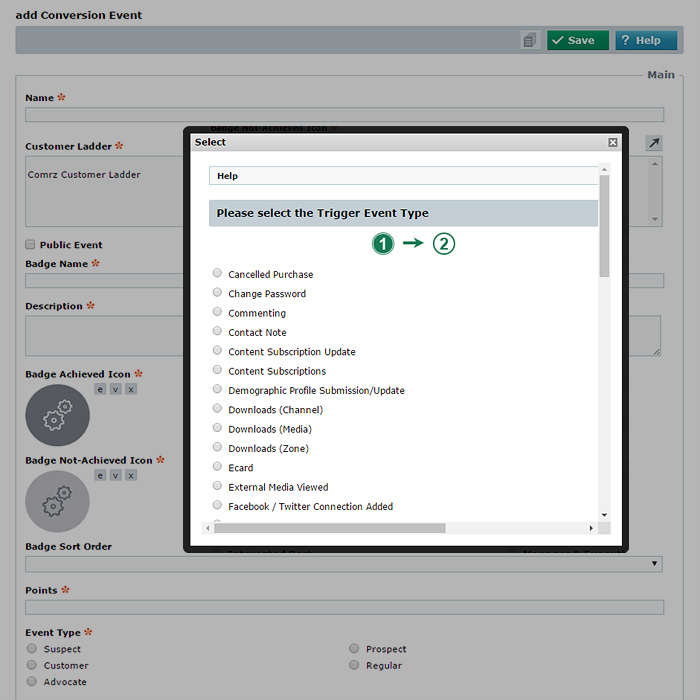
- Trigger Event [Select] - Affino has the following Conversion Events and Tracking for the following user variants:
- Frequency Scale - each time | 1st | 2nd | 5th | 10th | 25th | 50th | 100th | 250th | 1000th | 2500th
- Topic Assignment [Select] - Select which Topics apply
- Member Types - Tick whichever Member Types apply to Conversion Event
- Notification Recipients [Select] - Select which Users receive Notifications of Conversion Events triggered
- Include Shopping Basket in Notification - Include details of Shopping Basket in notification message
- Include User Information In Notification - Enter the text and placeholders that will be sent in the email notification. The following placeholders can be used: [_First_Name_], [_Last_Name_], [_Email_], [_Job_Title_] [_Company_], [_Address1_], [_Address2_], [_Town_City_], [_County_State_], [_Postcode_Zip_], [_Country_], [_Member_Type_], [_User_Code_]. You can also add demographic data fields by appending the data field name of the demographic field to [_Dg_{{DataFieldName}}_], e.g. [_Dg_FavoriteColor_]. Note: HTML formatting should not be used in this field.
- Integration Script - Select Custom Intergation Script to interact with Conversion Event trigger
- Excluded Security Groups [Select] - Select which Security Groups you don’t wish to trigger this Conversion Event
- Log Conversion Event - Select to Log / store data for this Conversion Event for analytics purposes, some require, this some don’t
- Excluded Logging Security Groups [Select] - Choose which Security Group members activites are not logged for this Conversion Event
- Maximum Events Logged - Enter limit for maximum number of events logged per user - e.g. 100
- Maximum Timeframe - Enter the Maximum Timeframe in days for how long you wish to record user logs -e.g. 365 = 1 year
- Secondary Conversion Events [Select] - You can daisy-chain Conversion Events together into a sequenced workflow where one triggers another etc.
- Required Conversion Events [Select] - Select one or more Conversion Events which have to be triggered first before the current one is activated
- Blocking Conversion Events [Select] - Select Conversion Events which prevent this one from being Activated - i.e. customer has engaged in alternative worklow / activity
- [_] Send My Message - Select to send Personalised Me Message to user upon triggering of this Conversion Event
- My Message Sender [Select] - Select Message Sender User
- My Message Title - Enter Title of Message
- My Message Content - Enter content for Message to be sent to User
- Delay Actions - Enter amount of time in hours between Event Trigger and Message being sent out
- Add to Contact List [Select] - Select Contact list to be populated with Users who Trigger this Coneversion Event
- Add to Security Group - Select Security Group to be populated with Users who Trigger this Conversion Event
- Remove from Security Group - Select Security Group from which Users who trigger this Conversion Event will be removed
- Security Group Timeout - Enter the number of days until the incentive security group membership times out. If you enter Zero then it will not time out
- Content Subscription Section [Select] - Select Content Subscription Section which will be populated by Users who trigger this Conversion Event
- Content Subscription Frequency - Select default Freguence for Content Subs - Real-Time | Daily | Weekly | Monthly
- Store Credit Points - Enter Store Credits earned by triggering this Conversion Event
- Add to Mailing List [Select] - Select Mailing List to populate with Users who trigger this Conversion Event
- Security Clearance - Assign Content Security Right to Conversion Event, only users with same corresponsing Right can trigger Event
Conversion Event storage limit:
We set a limit of storing the last 1,000 of each type of conversion event logged per user.
Note: The default is set to store the last 10 of each type when creating a new one, but this can easily be extended to 1,000.
Please bear in mind that the "Cancelled Subscription" conversion event will only trigger if the subscription is cancelled from the My Account page by the subscriber. This is done on the display side (front end). It will not trigger if you change the "Renew Action" to "Cancel" from the Subscription detail (edit) page, which is on the Control Centre.
Troubleshooting
- We suggest as part of running an Affino Site you set up dummy test accounts per User category / Security Group - so you can test each Conversion Event you set up
- Note the time Delay Actions when triggering Events before you jump to check the outcome
- Be very judicious in checking User’s Security Group and Security Rights in terms of how the Conversion Event has been set up
- Keep it as simply as possible! There is a temptation to overcomplicate and over-daisy-chain elements here, which make for very difficult problem solving when things don’t work
- Most issues with Conversion Events come about via logic bombs - where the defined characteristcs might unwittingly exclude all or too many users
Did you find this content useful?
Thank you for your input
Thank you for your feedback

Driving business at some of the world's most forward thinking companies











Our Chosen Charity


Meetings:
Google Meet and Zoom
Venue:
Soho House, Soho Works +
Registered Office:
55 Bathurst Mews
London, UK
W2 2SB
© Affino 2026