 Customer Support
 Contact Sales

 About
About


Message Campaign Guide
Overview
Control > Marketing > Message Campaigns
Messages in Affino are located under the Marketing hub (no longer under "Promote"). They are composed largely of 2 main components - the Subscriber / Mailing list, and the actual individual messages which we call Message Campaigns. The Messages used to be created modularly with Design Objects, but for responsive, we use HTML templates - which means Affino customers have a far freer reign in formatting and styling to their own requirements.
We have 4 core templates which can be referenced, copied and adapted:
- Simple
- Article Listing (Standard Items)
- Catalogue Item Listing (Ecommerce)
- Recruitment Listing (Jobs)
If you need something else, you can try your hand in creating new variations using Affino’s existing message formatting parameters. You can also commission Affino to create custom templates to your own precise requirements.
The smartest part of Messaging is the ’Smart Message’ element where you can set a number of dynamic triggers to send off a Message, for instance any Conversion Event from the Customer Ladder, or say an Abandoned Shopping Basket.
You will need 2 Channels for Messages - a Mailing List Channel Type for the Signup / Subscription management, and a Standard Channel type to associate the Message Campaign with your Zone, this can be your My Message channel.
Elements and Dependencies
- Article Channel Type - This is typically where the content of your Message will reside - e.g. for 'Article Listing' Message Template
- Bulk Message Subscriptions - Assign entire User Profiles to selected Mailing Lists
- Conversion Event - Filter Option on Campaign Message
- Default Message - Rarely used, but you can set up a series of Default Messages which can then be sent out in a hurry - just two field form - Name and Message
- Email Settings / Email Profile - Ensure that your email settings are correct, and that you have a suitable ’noreply@mysite.com’ email address for mailing purposes
- Mailing List Channel Type - Regular 2 or 3 column skin with central Prime Content Area for Users to update subscription details and view historic issues of Message Campaigns
- Mailing List – This is where the Mailing List management features and subscriptions are located
- Mailing List Signup Design Element - Use this to encourage Message Signup on key Gateway Skins (*Not yet complete for Responsive)
- Mailing List Subscriber Import - CSV Import of Mailing List Subscribers
- Message Analysis - Message Click-through analysis and trends
- Message Campaigns – This is where messages are created, there are 4 types currently - Premium Classic, Personal Message, SMS and Premium Responsive - it is this final category that is the only one we will concern ourselves with here
- Mailing List Profile - Set up / configure Mailing List Profile which you will need for the Message Type Channel
- Message Templates - The 4 Core Affino Message Templates and customer variations / adptations and additions therefrom
- Messages - Where you set up, test and send your manual mailings, the message will be sent to the subscribers to the Message Campaign assigned. Automatic mail-outs are defined on the Message Campaign
- Product Channel Type - For the 'Catalogue Item Listing' Message Template
- Recruitment Channel Type - For the 'Recruitment Listing' Message Template
- Registration Profile / Registration - You can select Mailing Lists to appear on Registration
- Related Item Mailing List - You can relate Mailing Lists to content - this gives you a small sign up form (First Name + Last Name + Email Address) within a Design Menu type construct
- Security Clearance - Assign Content Security Right to restrict access to Mailing List Sign-up
- Skins / Design Objects - You will need a Skin for your Mailing List Channel Type (Mailing Subscriptions / Unsubscribe etc.)
- Store Credit Profile - Filter option on Message Campaign - i.e. Users with Store Credits
- Store Profile / Checkout - You can select Mailing List signup to appear on Checkout
Uses
Messages are used for a variety of announcements and notifications, both manually dispatched and fully automated. A variety of auto-triggered reminders can be sent out, e.g. Abandoned Shopping Cart; manually you might send out fairly regular structured messages with special offers or service updates.
Advisory and Process
As long as you closely follow the process set out below, you should not hit any major hitches. Be careful with the filter settings on the Message Campaigns, and ensure that you have the necessary references on your Messages to help prevent the Message from ending up in a spam bin. The references that all Messages need are a proper, dynamic salutation (Dear [User Name]); issue reference (number and / or date) and contact points.
1: Check and Configure Email Settings
Ensure that your Email Settings are correct - you can do a test message to make sure that your site is enabled for sending out email - if you encounter hitches, contact your Affino support representative, and they will liaise with Technical to ensure that the correct email server settings are applied.
2: Check, update or create relevant Email Profile
Most sites use a Do Not Reply / NoReply@ email address; e.g. noreply@mysite.com for mailing out messages and other notifications which are not to be responded to. If you don’t have one already, you will need to set up a new email account and assign it on an Email Profile.
3: Create or Update Mailing List Profile
This helps define the key subscription elements on the actual Mailing List Signup Screen:
MAIN
- Name - Enter the Name for Mailing List Profile
- Description - Enter text description - for your purposes only, optional
- [_] Show Country Selector - Select to include a required Country selector below the email address field on the mailing list signups, whether it’s on the main screen or in the design elements
- Country Label - Enter Label for Country; e.g. ’Country’
- [_] Enable Double Confirm - Select to enable the opt-in confirmation email which is sent to users after they have opted in to a mailing list.
- Double Confirm Email Subject - Enter Subject Text; e.g. ’Please confirm your Newsletter Subscription’
- Double Confirm Email Body - Enter Email Body Text with utilising following dynamic elements:
Please confirm this subscription by clicking the following link:
[fullactivationlink]
Or alternatively go to
[activationscreen] and enter:
Email: [Email]
Activation Code: [ActivationCode]
- Activate Your Subscription Heading - Enter Activation Header text; e.g. ’Activate Your Subscription’
- Newsletter Image - Select / Upload suitable image for Activate Message Subscription screen (2008DefaultNewsletterSubscriptionImage is default provided)
- Activate Newsletter Body - Enter Message Activate Body text; e.g. ’Please add your email and activation code below’
- Your Information Label - Enter ’Your Information’ Label
- These fields are mandatory label - Enter ’These fields are Mandatory’ label
- Email Label - Enter ’Email’ Label
- Activation Code Label - Enter ’Activation Code’ Label
- Submit Button - Select / Upload suitable ’Subscribe’ button
- Submit Label/ Alt - Enter ’Subscribe’ Label
- Activation Code Accepted Header - Enter ’Activation Code Accepted’ Header label
- Body Text - Enter Activation Accepted body text; e.g. ’Your registered email address has now been accepted and we’ll send you the next newsletter as soon as it’s available’
- Home Button - Select / Upload button ’Home’ button image
- Home Label / Alt Text - Enter ’Home’ label, used as Alt for image, and text for when there is no image
- Error Message - Enter Activation Error Message - ’Correct username and activation code needed, non-matching email address/ activation code entered. Please try again’
NOTIFICATIONS
- Subscribe Notification Message - Enter Subscription Notification Message; e.g. ’You are subscribed to the following message(s) on [SiteURL]:’
- Unsubscribe Notification Message - Enter Unsubscribe Notification Message; e.g. ’You have unsubscribed from the following message(s) on [SiteURL]:’
4: Create Mailing List Channel Skin
You need a 1 or 2 column regular content Skin with Prime Content Area to display Subscription / Unsubscribe area
5: Create Mailing List Channel Type
This is where the Mailing List Signup element appears, and where Users go to view old Messages or to unsubscribe.
6: Create Article Channel Type for Message Campaign Skin
You need a Standard Article Channel Type rather than a Gateway Channel, as the Prime Content Area Design Element is occasionally used to display Text from the Message entry fields; particularly for ’Message Prime Content’
7: Create Mailing List
The Mailing List contains the basic information required to describe the Mailing List and handles subscribers/un-subscriber lists.
MAIN
- Name - Enter suitable name for this mailing list; e.g. ’Monthly News Updates’.
- Section - Select the Section where this Item is to sit in, the Section will already exist from the creation of the Mailing List type Channel in the previous step
- Multi Display - Select additional Sections to display this Mailing List within.
- Teaser - Enter a teaser / prompt / words of encouragement to entice users to sign up for this Mailing List.
- Sort Order – Select the sort order that the Mailing List is displayed in.
SECURITY
- Security Clearance - Restrict Access to this particular Mailing List be way of Content Security Right
PUBLICATION
- Live – Check box to publish the Mailing List to your website
- Hidden – Check box to Hide this Mailing List from display on the signup screen
Note: Mailing Lists do not have a Captcha option
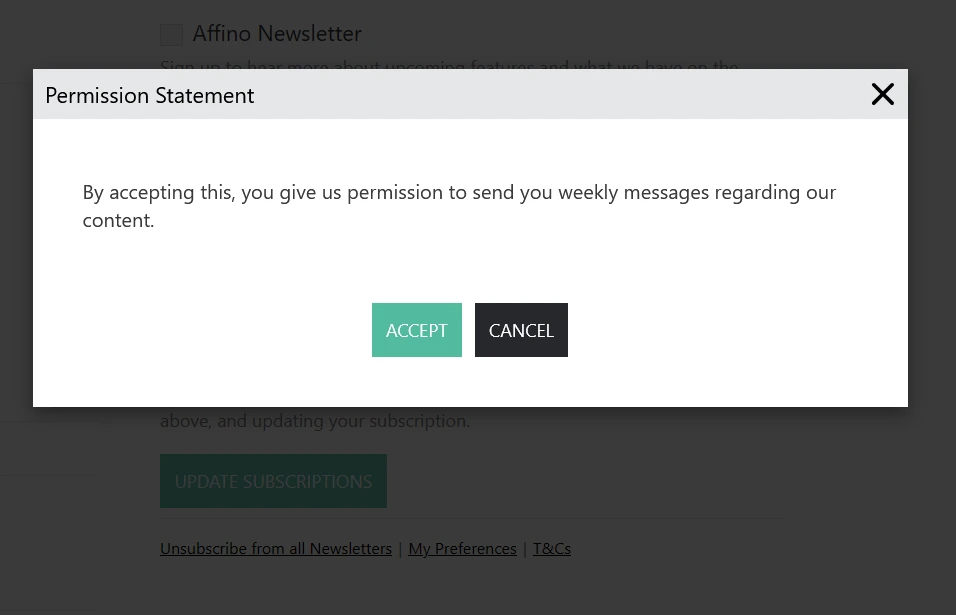
They do, however, have a Permission option (Control > Security > Permissions). The "Permission Statement" is like a warning text, that appears to the user before they sign up to the mailing list. This works to prevent the user from signing up without knowing the implications.
8: Create Message Campaign
This contains a number of filtering, advanced notification and automated / smart message settings. The first step is to choose what type of Message Campaign to create.
Premium Messages:
These are the equivalent of traditional newsletter messages. These type of messages have all the filters and options available on the message campaign and the message itself. They are fully integrated into Ad Campaigns and Message Templates.
Personal Messages:
These are simple text based email notifications. They use filters and options, but do not have the ability to use message templates and ad campaigns.
Note: Personal messages include an unsubscribe link by default, the same as other messages.
However, there is a dedicated option on Personal messages that lets you remove it:
- In Control > Message, when the Message Type is set to Personal, you get a “Hide Unsubscribe Notice” checkbox (default: No)
- If you leave it unticked, the standard unsubscribe link is included
- If you tick “Hide Unsubscribe Notice”, that particular Personal message is sent without the unsubscribe link
This option is only available for Personal messages; other message campaigns will continue to carry an unsubscribe link as normal. The option should only be used for genuinely low‑volume, personal communications, as removing it on bulk sends increases spam-complaint and deliverability risk.
SMS Messages:
These are SMS based messages, they only use text. These require that an SMS Provider Profile is set up. You will need to purchase credits with TXT Local, which is the company that integrates with Affino's SMS capability.
Depending on what option is selected, the options are as follows:
MAIN
- Name - Enter a memorable Name for this Message Campaign, include Zone if you are on a multi-zone setup
- Message Type – Displays the message type you have selected in step one = Premium Responsive
MEMBERSHIP FILTERS
- Mailing List – Select the mailing list which identifies which Subscriber List the message campaign will be used for. You can choose not to filter on this below.
- Marketing Campaign - Select to exclude users who have Unsubscribe From All Marketing selected on their contact record from receiving messages from this Message Campaign. Note: Marketing preferences on the mailing will supersede this setting.
- Filter By Mailing List - Tick this box to filter by Mailing List. Only subscribers to the Mailing List will be included
- Include Non-Members - i.e. include Contacts as well as Members (Members = Users with Passwords, Non-Members typically just FirstName LastName and Email Address)
- Security Groups – Select the Security Groups you want to filter on. If you do not select any group then no group filter will be applied
- Accounts - Select one or more Accounts you wish to target with this message
- Contact Lists - Filter by specific Contact List/s - i.e. subsets of Contacts Database
- Contact List Operator - Select to send message only to users matched in all selected Contacts Lists (AND), e.g. CEOs (Contact List 1) who live in London (Contact List 2) or to users listed in any of the selected Contact Lists (OR), e.g. both Students (Contact List 1) and Teachers (Contact List 2)
- Exclude Contact Lists - Select any Contact Lists whose members you wish to exclude from receiving the messages. Any member of an excluded contact list will not be included in the distribution
- Exclude Conversion Events - Select the Conversion Events you wish to exclude, i.e. an contact who has triggered the conversion event will not be included when sending the Message Campaign
- Exclude Opened Messages -
- Member Activity – Select whether to filter by Active or Inactive Members
- (o) All Members, (o) Active Members, (o) Inactive Members - based on whether recently logged into site
- Active Member Timeframe – The number of days after which a member is classified as inactive. Usually that would be around 90 days, but it will depend on the scenario and could be anything from 1 day up to system maximum which is 400. This filter only works for Subscriber and Member Active / Inactive User Filter
- Ecommerce Customers - Select whether or not you want to filter by Customers or Non-customers
- (o) All Members, (o) Customers, (o) Non-customers - based on whether users have purchased from you before
- Customer Purchase – Select product/s that you want to filter the Customer selection on. If selected then the Customer filter will only apply to users who have purchased the specific Catalogue Item/s selected.
- Filter by Store Credit – Select to filter by members with Store Credits
- Store Credit Profile – Select the Store Credit Profile to apply the filter on. Only users with Store Credits from this profile will be included in the filter
DEMOGRAPHIC FILTERS
- Job Title/s - Select to Filter recipients by specific comma-separated Job Titles
- Country - Select to Filter recipients by Selected Country destination/s
- Job Seeker - Select this option to filter records by Job Seeker. This option is presented during the registration
- Gender - Select to Filter recipients by Gender - (o) Both, (o) Male, (o) Female
- Age From - Start of Age Range; All is default (then 1-100)
- Age To - End of Date Range; All is default (then 1-100)
- Topics - Select the Topics you want to filter by. Only members with matching topics (if any are selected) will be sent the message.
AUTO MESSAGING
- Email Profile - Select the Email Profile used for sending out Premium and My messages.
- Sender - Select the Sender to include in the from details for email and SMS.
- Sender Display Name – If you select a sender then choose whether to use the Full
- Name (default), Nickname, First Name or Last Name.
- Subject - Enter the email Subject - this is what appears as Subject in recipients’ inbox
- Message Template - Select nearest core Message Template match - we can update this setting later once Message Template has been updated, and as long as Message has not been sent
- Header - Enter Message Content Header Text / HTML
- Message Content - Select to enter the message text or select a pre-defined default message:
- (o) Message or (o) Default Message
- Message - Enter Message Text / HTML, note that the following notations are available:
- {{__TITLE__}}
- {{__FIRSTNAME__}}
- {{__LASTNAME__}}
- {{__COMPANY__}}
- {{__DATEA__}} - dd mm yyyy
- {{__DATEB__}} - dd mmmm yyyy
- {{__DATEC__}} - dddd:dd mmmm yyyy
- {{__TIMEA__}} - h:mm tt
- {{__TIMEB__}} - HH:MM
- {{__TIMEC__}} - h:mm tt TZ
- {{__TIMED__}} - HH:MM TZ
- Footer - Enter Footer Text / HTML
- Message Content Sections - Select up to two Content Sections. This will list the Section Name and articles within that Section in the order it is sorted. The No. Section Articles field below will determine the maximum number of articles to be displayed. For a different number of articles per Section, you will need to create new Sections and multi-display articles into it
- No. Section Articles - Select the number of items to include in the message. This value will apply to every Section selected, maximum limit is 24. Note: The Section Content 3 Col Image Top element in the Template Builder will display exact rows of 3 articles so if set to 7, it will not display the last article. The same applies to the Section Content 2 Col Image Top
- No. Converting Articles - Enter the number of converting articles to list, maximum limit is 24. Use the Converting Articles element in the Template Builder. Note: The Converting Articles 3 Col Image Top element will display exact rows of 3 articles so if set to 7, it will not display the last article. The same applies to the Converting Articles 2 Col Image Top
- Converting Timeframe - Enter the timeframe (number of days) for which to filter the results. Combined with Content Duration, you can list articles in different ways, e.g. Highest converting articles in the past 30 days from all articles published within the past year
- Content Duration - Enter the duration (number of days) to select articles published within the last x days. Entering 365 would use content published within the last 365 days. Enter 0 for no limitation on the publish date
- Include Secured Content - Select to include secured content in the message. If not selected, any content which is secured will not be included
- Defer To Original Section - Select to direct user to originating Section that articles live in
- Difficulty Reading Link Text - Enter text for Difficulty Reading Link; e.g. ’Click here if you have difficulty reading this Message’
- Message Channel - Select Affino 'My Messages' Channel which applies for this Message
- [_] Live - Tick box to make the Message Campaign Live
Note: the "Message Channel" serves to identifiy the channel through which the messages in that campaign will be sent. It is used to determine the Zone for the message sending, which affects the URLs, unsubscribe links, and other zone-specific settings associated with the message.
Also, the Name that appears as the Sender when a message is sent can be the Nickname, First Name, Last Name or the Full Name.
CREATIVES
Campaign / Creative 1 (Creative 2, Creative 3, Creative 4, Creative 5)
- Select the creative to be placed in the Creative 1 slot (and so forth) on the Message Template
AUTO RESPONSE
- Event Trigger - Select an automatic event which triggers the Message:
- No Trigger
- Abandoned Basket
- Abandoned Checkout
- Birthday
- Conversion Event
- Login
- Purchase
- Registration
- Note: If you select Conversion Event, you will additionally have to select which Conversion Event applies
- Message Delay Duration - Select the duration (Hours or Days) after which the message is sent. By default the Birthday Event Trigger is sent at midnight, however you can set it to send at midday by selecting a 12-hour delay. Please note if using conversion events, there could also be a delay set on that
- Message Delay Number - Select the number of Hours / Days for the scheduled task to send the message. Please note the scheduled task will check every 5 minutes for eligible users to send the message.
ADDITONAL Per SMS and Premium Classic Message
- SMS Provider Profile - Help: Select the SMS Profile used for sending out messages
- Skin - Select the Skin for your Premium message
AUTO SCHEDULING
- Add Scheduling - Select Scheduling type:
- (o) Off (o) Daily (o) Weekly (o) Fortnightly (o) Monthly
- Time - Select Time per 24:00 hour clock - from 00:00 to 23:00
- Day - Select Day: Sunday to Saturday (if Weekly option is selected)
- Date - Select numbered Day of the month (Only active if Monthly option is selected)
Note: you cannot delete a Contact List if its associated to a Message or Message Campaign
9: Copy and Adapt Message Template
This is typically done after you've created you Campaign Message for reasons of dependencies
There are 4 core Message Templates currently in Affino, as per Intro above:
- Simple
- Article Listing (Standard Items)
- Catalogue Item Listing (Ecommerce)
- Recruitment Listing (Jobs)
If you need something else, you can try your hand in creating new variations using Affino's existing message formatting parameters. You can also commission Affino to create custom templates to your own precise requirements.
The Image at the top of this page is an Official Affino example of the 'Simple' template
The process starts by you ticking next to the closest matching Template and hitting the [copy][Action] function below that listing - you then edit and adapt that template, with the following parameters:
MAIN
- Name - Enter suitable reference Name for this Template
- Description - Enter breif explanation of what this Template is for
- HTML Template - Edit and Adapt reference HTML to suit your purposes, using the following placeholders:
- {{__HEADER__}}
- {{__TITLE__}}
- {{__FIRSTNAME__}}
- {{__LASTNAME__}}
- {{__COMPANY__}}
- {{__MESSAGE__}}
- {{__SECTION_CONTENT__}}
- {{__FOOTER__}}
- {{__DATEA__}} - dd mm yyyy
- {{__DATEB__}} - dd mmmm yyyy
- {{__DATEC__}} - dddd:dd mmmm yyyy
- {{__TIMEA__}} - h:mm tt
- {{__TIMEB__}} - HH:MM
- {{__TIMEC__}} - h:mm tt TZ
- {{__TIMED__}} - HH:MM TZ
- Section Content CSS - Apply additional CSS to style content, be aware that while Apple / iOS / OSX supports some advanced styling, the major email Clients DO NOT - e.g. Gmail, Outlook and Yahoo Mail
- [✓] Parse and Validate HTML - Select this option to parse and validate HTML. System will convert any declared css classes to inline style. If unsure leave this option unticked - especially for advanced custom applications.
TEMPLATE PREVIEW
- Warnings and HTML Preview of Message Template
NOTE - As mentioned, most Email Clients do not support advanced styling and or dynamic media and function calls, you may apply whatever HTML you feel suitable, and some may work on Apple devices, but not elsewhere. Affino cannot support entirely custom templates here - there would be additional costs for validation and testing of such.
10: Create Message
Note - this is only required for Manual Despatch Messages, automated Message are entirely governed from the Message Campaigns and Mailing List Profile settings / fields
There are 4 Steps to creating Messages.
Step 1
You will need to 'Select the Message Campaign' which defines the format for the Message.
Step 2
Select Message Type - Premium Responsive
Step 3
Select:
- Sender - User whom Message is coming from
- Message - Either using existing formatted Message field from Message Campaign or editing or adpating thereof
Step 4
Fill in form fields!:
MAIN
- Subject - Enter 'Name' of Message as it appears as Subject in recipeints Email Client
- Estimated Reach - System field which confirms how many are being targeted by Message, depending on Filters selected on Message Campaign, as well as this Message itself
- Message Campaign - Message type selected in Step 3 above
- Mailing List - Mailing / Subscriber List you are sending this Message to - Selected via Message Campaign
- Message Type - System Field which records Message Type, i.e. Premium Responsive in this instance
- Channel - My Messages Channel for Message, e.g. 'Inbox'
- Campaign Theme - Select Campaign Theme if one applies to Message Template
- Sender - User whom Message is coming from
- Contact Lists - Filter recipients by Contact List
- Exclude Contact Lists - Select to Exclude certain Users per specific Contact List/s
- Job Title - Filter on Job Titles - comma-separated list
- Message Content - Whether separate Message or one from Message Campaign - (o) Message or (o) Default Message
- Default Message - Select to display simple Default Message template instead
- Message Template - Select which Message Template applies
- Header - Separate Header Text / HTML
- Message - The Actual Message Detail - core text / HTML
- Footer - Separate Header Text / HTML
- Send Delay - Enter Send Delay by number of days, usually set to 0
MESSAGE VARIATIONS
- [_] Send Test Message - Select if you want to send Test Messages
- Test Messages - Enter in the total number of test messages sent. This will then be divided equally between each of the variations added below as well as the main one on the message. Note that we recommend only using this where the test is a minimum 100 recipients
- Criteria - (o) Opens | (o) Clicks 0 - Select the criteria for determining the best performing variation. After the Delay selected below, the variation with the most clicks / opens will be sent to the remainder of the mailing list.
- Delay - Select the delay used to identify the opens / clicks before then sending out the remainder of the messages. - 60 minutes up to 1 day
VARIATIONS
- Row | Subject | Sender Name | Sender - Enter in the variations for the key message attributes, i.e. the Subject and the Sender. These will then each be sent out in the tests and after the delay the selected version will be sent through.
STATS and AUDIT
- Additional System fields visible on View Screen of Message, or when Message has been saved - basic Analysis and Audit data
NOTE - You can [Test] the Message via top Edit Bar by sending it to a number of test accounts (comma separated email addresses), we recommend you do at least a couple of tests before you hit the green [Send] button!
Also, please be aware that you cannot delete a Contact List if its associated to a Message or Message Campaign
11: See how your Messages are doing via Message Analysis
Under Analyse you have 3 Analysis elements where you can review the success of your mailing:
- Mailing List Analysis
- Message Analysis
- Message Campaign Analysis
These offer insight into the immediate status of any individual mailing, as well as the long-term trends for each of your campaigns.
They also offer insight into your sales and marketing automation since they track all your auto-responders in the same way. You can see just how many times auto-response messages are sent and the success rates over time.
Mailing List Analysis gives great insight into subscriber trends.
12: Mailing List Subscriber Import
Select the Mailing List, the CSV document, Action and User Profile to import users. Click on Help to view a sample CSV which includes all the required column headings.
You can select to add Subscribers blind, or else [_] Send Notification in selected language - to inform Users that they have been subscribed to selected Mailing List.
13: Organise Bulk Mailing List Subscriptions
- Select a Security Group and/or User Profile to subscribe to the selected Mailing List.
Calculate the Open Rate
Control > Security > CRM Profiles > (Add-Edit) > Message Campaign panel > Open Rate Calculation
Open Rate Calculation: Use Filtered Opens
With this option, Affino calculates the Open Rate of filtered users and does not count detected bots.
Open Rate Calculation: Use Unfiltered Opens
With this other option, Affino calculates the total (unfiltered) Open Rate for each message.
Note: amending the Open Rate Calculation will only take effect for new messages.
The change will affect conversion rates.
How to use Heatmaps
Heatmaps are one of the most essential tools for identifying how effective a message has been. Being able at a glance to see what links were (and weren’t) clicked on gives a strong indication of what works and doesn’t work, informing future campaigns.
Control > Message Analysis > Message
On the Message Analysis screen, click on the individual message.
If the selected message has results (clicks) then you will see a View Heatmap button.
When the Heatmap button is clicked, it displays the message content in a new screen (or new tab) with a coloured overlay.
Control > Analyse > Site Analysis > Newsletter Message Heatmap
The heatmap will display:
- Total Clicks
- Click Through Rate
- Unique Clicks
- Unique Click Through Rate
Color gradings:
Red is for maximum clicks and Blue for none (with gradients in between).
- Links / images with many clicks will be redder
- The ones with a low number of clicks will be mauve
- No clicks will simply be blue
There is an option to toggle the heatmap overlay On or Off so you can see the underlying message without it if desired.
You can also see the results within the Message Report screen without accessing the heatmap via the Detail panel:
How to perform Split Testing
Split testing (commonly referred to as A/B testing) allows marketers to compare different variations to determine which message performs better, with the goal of boosting conversions.
To set up Split Testing, enable the Split Test option in the Message Variations panel, currently only available for Premium messages:
Control > Marketing > Messages > (Add/Edit) > Message Variations
Setup:
- Split Test: Select to use split testing to determine the best performing Subject and Sender variation
- Rows: Enter up to 5 variations for the key message attributes, i.e. the Subject and the Sender. You can include the main Subject and Sender as the first option. These will then each be sent out in the tests and after the delay the winning version will be sent to the remaining recipients.
- Subject (type: text)
- Sender (type: popup)
- Delete Row (type: checkbox)
- Test Segment: Enter the number of users to use for the split test. The message will be sent equally to the total variations. It is recommended that you use a minimum of 100 recipients to decide the better performing variation
- Type: integer
- Winning Criterion: Select the criterion for which to determine the best performing variation.
- Open Rate
- Link Clicks. (Select the specific link within the email message to determine the winning variation.)
- Total Unique Clicks
- Type: checkbox
Select Winner After: Enter the number of hours before selecting the winner to send the remaining messages.
NOTE:
Split testing is implemented for Premium messages only.
If Personal or SMS format is selected, the Message Variations panel will be hidden.
If Split Test is selected, the message will be sent first to the Test Segment of users.
Variations will be sent to equal portions of test recipients to determine the winner, so if the Test Segment is set to 100 and there are 3 variations, the message campaign will be sent to 99 recipients, instead of 100.
Once the winner is determined, the message Subject and Sender will be updated with the winner before sending to the remaining recipients.
The number of test segments cannot exceed the estimated reach.
Message Storage Time Frame
Control > Security CRM Settings > Message Storage Time Frame
The "Message Storage Time Frame" options on the CRM Settings screen allow you to define the maximum duration for storing different types of messages. This feature is designed to help manage data retention and ensure that messages do not accumulate unnecessarily, which could impact site performance.
Here's how these options work:
Auto Renewal Campaign: You can specify the number of months to store messages related to Auto Renewal Campaigns. After the specified period, these messages and their associated data will be deleted.
Newsletter: This option allows you to set the number of months for which Newsletter messages are stored. Once the time frame is exceeded, the messages and their data are removed.
Notification: You can determine how long Notification messages are retained by entering the number of months. Messages older than this period will be automatically deleted.
Promotional Campaign: Similar to the other options, you can set the storage duration for Promotional Campaign messages. After the specified time, these messages and their data will be deleted.
It is advisable to set the number of months for message retention, especially when a large number of data points (messages) are generated. This is to prevent potential impacts on site performance and avoid the need to upgrade to a higher SAAS service tier. Setting the value to zero means the message data will not be deleted.
Troubleshooting
Test Messages:
If you use the Test function on a Message and notice that the email doesnt display the latest updates and/or amendments that you've done on the associated Message Template, its because the HTML for the message is not regenerated if the message has already been sent to recipients.
So, if you
- create a template and a message
- send out the message to your users
- go back and modify the associated template
- go back to the message and try to send a new test message
-- that new test message will not reflect the latest amendments of your template because its using the previously generated HTML content rather than pulling in the latest template changes.
To remediate that, please create a completely new message, the new test message from that will show the latest updates to the template.
Other troubleshooting issues:
- Most significant issue with Mailings is 'Estimated Reach = 0' this happens when you have applied too many filters, and have inadvertently excluded the entire subscriber base in that fashion
- For Responsive Message Templates we encourage you to do a lot of testing across platform and OS, and Mailing Clients. Be aware that Apple Mail and Devices allow things that others do not
- Be careful to personalise your Mailings properly to ensure minimal Spam Filtering by recipients - personal salutation, sender name and email address, and proper personal sign-off too
Did you find this content useful?
Thank you for your input
Thank you for your feedback

Driving business at some of the world's most forward thinking companies











Our Chosen Charity


Meetings:
Google Meet and Zoom
Venue:
Soho House, Soho Works +
Registered Office:
55 Bathurst Mews
London, UK
W2 2SB
© Affino 2026