 Customer Support
 Contact Sales

 About
About


Google Tag Manager Guide

Overview
The Google Tag Manager (GTM) Profile screen is designed to manage the integration of GTM with your website, particularly focusing on cookie management for GDPR compliance.
The steps you need to take are outlined in this guide:
1.- Set the Name
2.- Select the Zone(s)
3.- Add the code for the Script - Head
4.- Add the code for the Noscript / Body
5.- Set the Cookie Name and Cookie Type
How it works
Setup and Selection:
When a GTM Profile is set up and selected for a specific zone, it automatically adds cookies to the header or footer of each page within that zone. This requires a declaration of cookie usage in the cookie dashboard to ensure transparency and compliance with GDPR regulations.
Cookie Policy Panel:
The GTM Profile includes a Cookie Policy panel where you can specify the cookies used by GTM scripts. This panel allows you to:
Cookie Dashboard:
The cookie dashboard is updated to reflect the cookies listed in the GTM Profile. It checks if the GTM Profile is being used in a zone and lists each cookie under its respective type.
Profile Management:
The GTM Profile is not directly connected to any specific Cookie Policy but is associated with the Default Cookie Policy through the types of cookies it uses. This means that while the GTM Profile itself doesn't dictate cookie policies, it informs the cookie types that need to be declared.
Technical Considerations:
The main GTM script is placed within the head of the page, while the noscript tag is placed below the body tag. This setup is in line with Google's recommendations for optimal performance and tracking accuracy.
Fields and Options
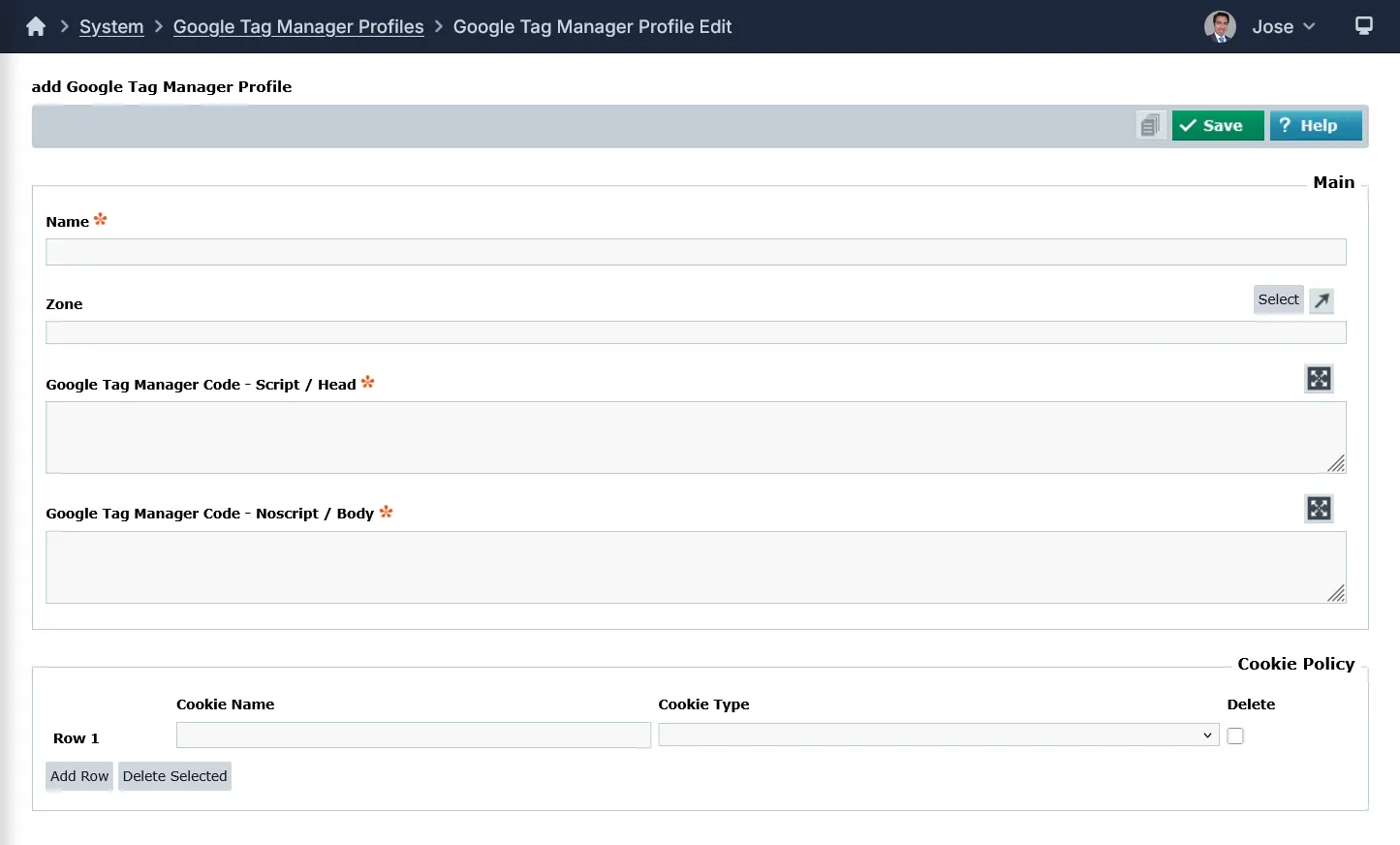
Main Panel
- Name: Enter the name for this Google Tag Manager Profile.
- Zone: Select one or more Zones to assign the Google Tag Manager Profile to.
- Google Tag Manager Code - Script / Head: Copy and paste the code generated by Google Tag Manager to insert into every page of your site in the head tag.
- Google Tag Manager Code - Noscript / Body: Copy and paste the code generated by Google Tag Manager to insert into every page of your site in the body tag.
Cookie Policy Panel
- Cookie Name: Give the cookie a name so that your users can distinguish it when accepting your site cookies
- Cookie Type: set a cookie type. These can be Strictly necessary, Functional, Performance (analytical) or Target or Advertising (3rd party)
- You can add/delete more rows (cookies) depending on your requirements
Note: you cannot add multiple Google Tag Manager Profiles to a Zone. Only one.
Please consult the Cookie Policy Overview guide for more information regarding cookies in Affino.
www.affino.com/affinohelp/settings-guides/cookie-policy-overview
Did you find this content useful?
Thank you for your input
Thank you for your feedback

Driving business at some of the world's most forward thinking companies











Our Chosen Charity


Meetings:
Google Meet and Zoom
Venue:
Soho House, Soho Works +
Registered Office:
55 Bathurst Mews
London, UK
W2 2SB
© Affino 2026