 Customer Support
 Contact Sales

 About
About


Media Items
Overview
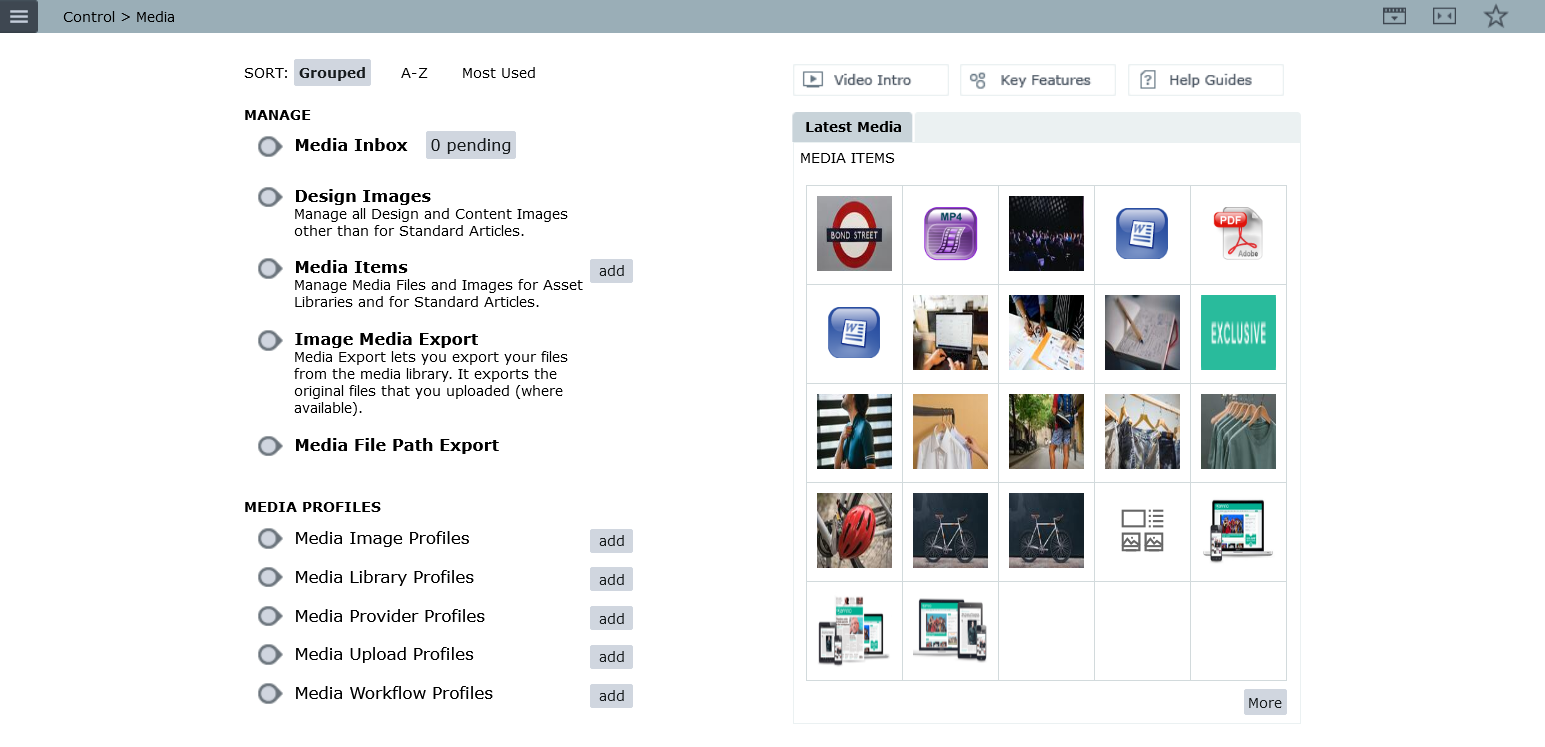
The basics of the Media Centre is uploading different media file formats to Affino and storing them in Media Libraries - some are Resource Libraries and largely hidden (at least structurally) from view, while others act as actual display-side pages used as Galleries, Document Libraries and the like.
This guide will give you the briefest of overviews on the process of uploading your media to Affino.
Media Formats
Affino currently handles the following A-Z of 23 media file formats:
GIF

JPEG

Quick Time

MP3

MP4

CAD/CAM

WAV

PNG

PDF

DOC

XLS

PPT

M4V

3GP

Embed WebM Video

Ogg Theora Video

Flip Book

ZIP

External File

SVG

Keynote

Pages

Numbers

HighCharts JS

Note - Some Flash formats may be deprecated at some stage in the future, and that the ZIP format servers as a universal folder repository for file types and extensions not currently covered.
Affino is optimised for Web use though, and should really only support web-friendly formats.
You can load others as ZIPs, but be aware that this will have impact on your Hosting costs, as there are a lot of highly unoptimised and heavy file size formats such as TIFFs.
Elements
(order as listed in Media Centre)
- Media Inbox: Part of Media Workflows if applied, Contributor media appears in the Inbox and needs to be approved by Media Editor to go live
- Design Images: Several separate Image folders used for Design Centre Images - chiefly two folders - 'Background' and 'Icons' - note that these images override if multiples of same name are uploaded vs Main Media Library where additions are appended with 1, 2 etc.
- Media Items: This is where you upload most Media on the Control-side - you select Album (Media Library Section) and then Upload option, you can also browse existing media here
- Media Editor: A Flash-based Media Editor for manually creating and manipulating image assets from master file, this will soon be deprecated and replaced by an HTML5 alternative
- Media Export: Allows you to Export your Media Master Files / Originals where possible, and where those have been retained
- Documents: An older system of storing and displaying Docs and PDFs, since superseded by the Main Media Library - this 'Documents' will soon be deprecated as this is essentially duplicate functionality
- Dropboxes: Sync personal or company Dropbox folders with Affino - very useful when dealing with extremely large file sizes
- Get New Dropbox Files: Sync trigger which checks and brings across new files
- Media Image Profiles: The individual 'Cookie Cutters' which create smaller re-sized assets from the original uploaded master file - e.g. 1280x720 or 720x486: 'Maintain Aspect Ratio' is recommended
- Media Library Profiles: Display Format Settings Profiles for Display-side Media Libraries - various display option settings and icons - for Main Media Library, Media Panels and Bars, Media Details, Music and Video Players, Media Scroller and Slide Show
- Media Provider Profiles: Embedded Media Provider Profiles - e.g. SoundCloud, Vimeo, YouTube etc.
- Media Upload Profiles: These Profiles, assigned to Media Library Channels, control the Media Upload to the Media Library - file types permitted, and 'Cookie Cutters' employed - usually 4 varieties at least - Thumb and Detail for Content Display, as well as Media Library Previews
- Media Workflow Profiles: Settings Profiles which allow 3rd Party Contributors to submit media in a controlled fashion
- Streaming Sources: Simply a Streaming Server URL for Media stored outside of the Affino Hosting setup, or outside that particular main server - usually done for sake of efficiency and load management
Uploading Media
On your initial Affino site setup you will usually find a default 'Media Library' Channel and Section called simply that. You may need to add further Media Library Sections or Channels depending on usage and display requirements. There is normally one central repository for most content images, and then additional Media Libraries for display purposes - for Image Galleries and the like.
You can either Upload from an Article Edit Form - simply clicking on one of the default media image thumbnails - which then pops up a mini library / lightbox window showing the most recently uploaded media and also giving you the options to [Search] and [Upload]
Alternatively you can simply hit the: Media Items - [Add] option
This will bring you to an Album [Select] screen where you select which Media Library Section applies - make your selection
Options:
- Green = Upload single file instantly
- Red = Enter either Media Embed Code or URL - e.g. YouTube URL from video page - this will upload a reference of that file to Affino, which means it is indexed into Affino's display-side content, search etc. even while still being called through from the source reference - e.g. YouTube in this example

For all different upload options you will encounter a Media Item edit form with several settings - this is already pre-ticked for 'Live' so except for special requirements, Ecommerce use etc. you can simply skip all the various settings and hit [Save] directly.

Note - your account manager should advice you on optimal Image sizes for your Affino site design - if there is a significant disparity between largest and smallest image size deployed on site, you may need to upload smaller Thumbnail type image in addition to Main Large Master File. We typically advice larger image format not exceed 2000 pixels in width or height.
Also, please be aware that without a Media Provider Profile (Control > Media > Media Provider Profiles) set up for Youtube, any embeded video from that platform will generate an error:
"The embed code you have entered is not valid.
YouTube API requires API Key - please set up Media Provider Profile"
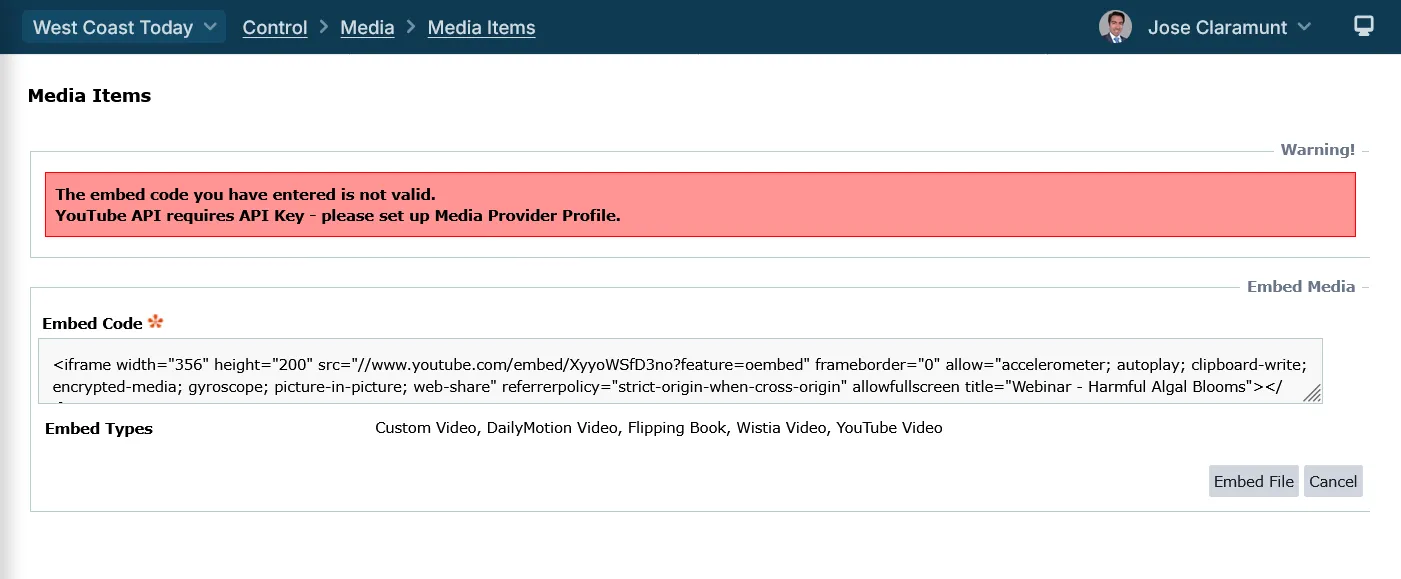
Consult the Media Provider Profile Setup guide for more information.
Features and settings
Once you've uploaded a media item you will be presented with the Detail screen.
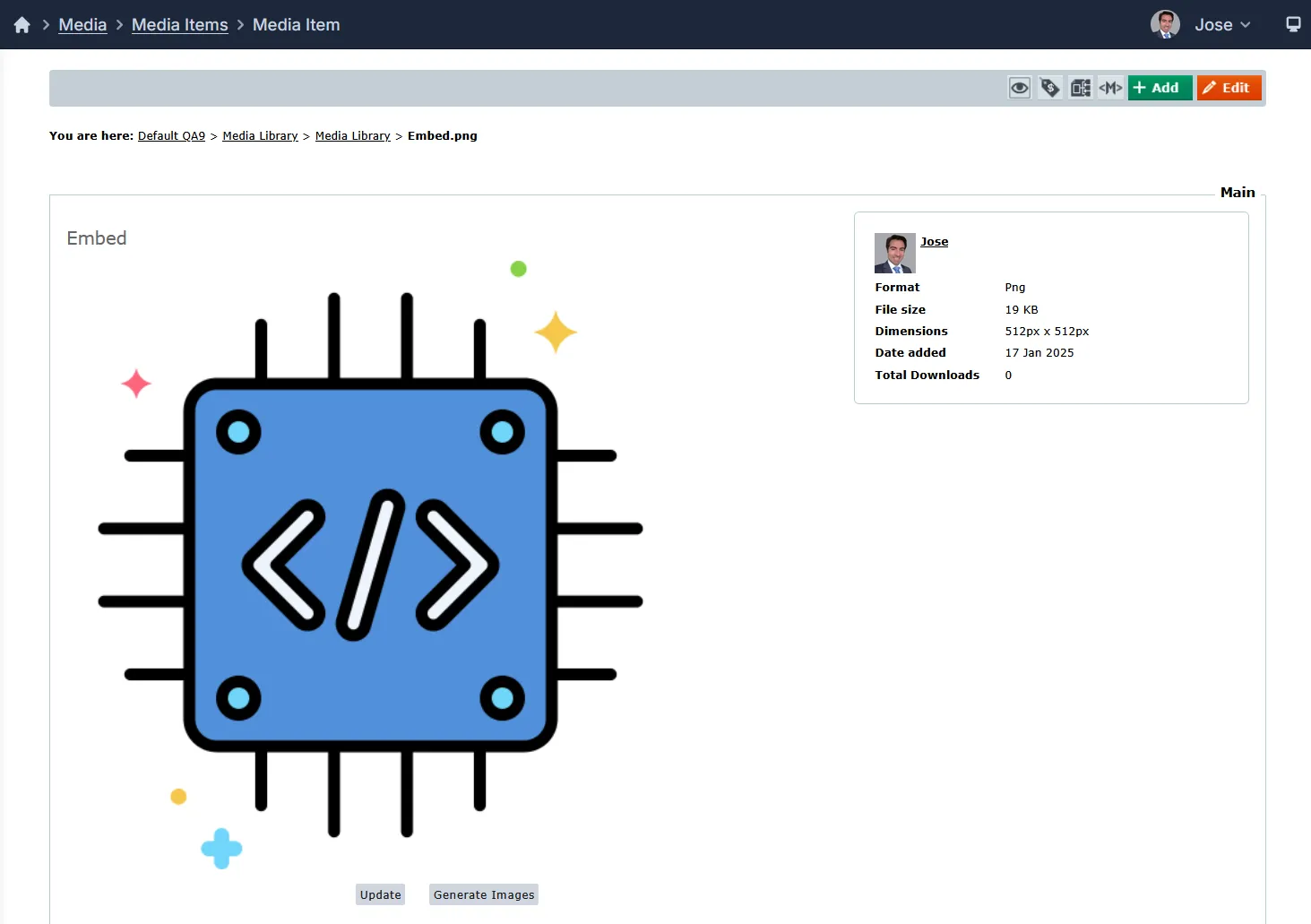
The image will have the original, plus a Thumbnail and Main Image option.
Further down you will find reporting panels for Stats, Recent Viewers and Referring URLs.
When you add or edit a media item will see the available fields and settings, these are:
Presentation Style Panel
This shows the type of Presentation Style set for the media item.
Navigation Panel
- Album
- Multi Display
- Sort Order
Introduction Panel
- Title
- Screen Name
- Link
- Teaser
- Introduction
Main Body Panel
- Shareline 1
- Shareline 2
- Shareline 3
- Main Body
- Sponsor Account
- Sponsor Link
- Sponsor Open Link
Comments and Ratings Panel
- Hide Comments And Ratings
Keywords Panel
- Keywords
- SEO
- Page Title
- Page Description
Geo Targeting Panel
- Geo Targeting Type
- Countries
- Search Panel
Additional Search Data
- eCommerce Panel
- Article
Security Panel
- Download
- Usage Number
- Security Clearance
- Restricted
- Restriction Notes
Publication Panel
- Creator
- Account
- Live
- Adult
- Moderated
- Syndicate
- Private
- Publish Start
- PublishStart
- Publish End
Selecting Media
On Channel, Section and Article / Item edit forms, you will see small picture icons labelled Thumbnail or Image 1 etc. You click on these to make your image selection or to upload images via article edit stage.
Affino pops up a mini lightbox / library - displaying a variety of your most recently uploaded media. You will see duplicates of the same image, but these are actually the various cookie-cut smaller sizes, as well as the original master. Beneath each image you will see pixel dimensions which help you choose the correct one for each application. - e.g. 72x468
You can page through the lightbox, or else hit the [Search] option - which highlights the importance of Naming Convention, and how easily your image files are identifiable and retrievable,
Note - For Responsive Affino will Scale images down to size to fit, we don't by rule scale up though, as images will appear distorted and fuzzy, and contain compression 'artifacts'
Picture in Picture (PiP)
What is Picture in Picture (PiP)?
Picture in Picture (PiP) allows a video to continue playing in a small, floating, moveable window even as the user scrolls away from the main video player or navigates to other parts of the website.
The Affino PiP Change: Native Support Only
Affino has recently updated its PiP implementation to rely solely on the native PiP functionality provided by modern web browsers.
- Custom Sticky Player Removed: Affino's previous custom sticky mini-player (a CSS/JS solution that activated on scroll to keep the video visible in the bottom right) has been removed.
- Why the Removal? The custom sticky player caused conflicts, resulting in overlapping windows, when combined with the browser's native PiP feature, particularly on Chrome and Safari. Relying on native support ensures better compatibility.
How to Activate PiP in Affino
The PiP feature now requires user interaction and does not activate automatically on scroll.
- Locate the Video: Find and play the desired video content on your Affino site.
- Click the PiP Button: Look for and click the Picture in Picture button on the video player controls.
- Video Floats: The video will transition to a small, floating window, allowing you to scroll or browse the page while playback continues.
Limitations
- Automatic PiP does not automatically activate when the video scrolls out of view; it requires a click.
- Firefox does not currently support PiP detection, which means users on this browser may still see the deprecated Affino sticky player alongside the native PiP window. This is a known browser limitation.
- Video impression and consumption tracking remains fully functional after this change.
Troubleshooting
- Most issues with Media are around selecting the correct Image / Image size - which is helped by having a smart Naming Convention, and applying due diligence when creating and selecting such images - there are visible references onscreen at all times
- Be aware that there are two types of JPEG - one is a CMYK variant and is intended for print, Affino will only accept the RGB Web variant version
- Issues with Upload options are usually to do with how Media Upload Profile is set up, there are also Media Upload Limits assigned on Media Workflow Profiles for Contributor Users
- If your image is appearing distorted their are three main causes:
- You have selected the wrong image size - usually too small a size, but occasionally way larger
- There is too great a gap between largest and smallest image sizes on-site and you require a separate smaller image reference
- We are running a custom script to 'fix' image sizes on the page, and the original source image / master file is simply too small for the new requirement
Did you find this content useful?
Thank you for your input
Thank you for your feedback

Driving business at some of the world's most forward thinking companies











Our Chosen Charity


Meetings:
Google Meet and Zoom
Venue:
Soho House, Soho Works +
Registered Office:
55 Bathurst Mews
London, UK
W2 2SB
© Affino 2026