 Customer Support
 Contact Sales

 About
About


Tasks
Control > CRM > Tasks
Affino’s Tasks functionality is a comprehensive and evolving feature within the CRM and broader platform, designed to support efficient task management, collaboration, and integration with other business processes.
This guide provides’ a detailed overview of its functions, fields, settings, options, and associations with other modules.
Core Functions of Tasks
Task Creation and Assignment:
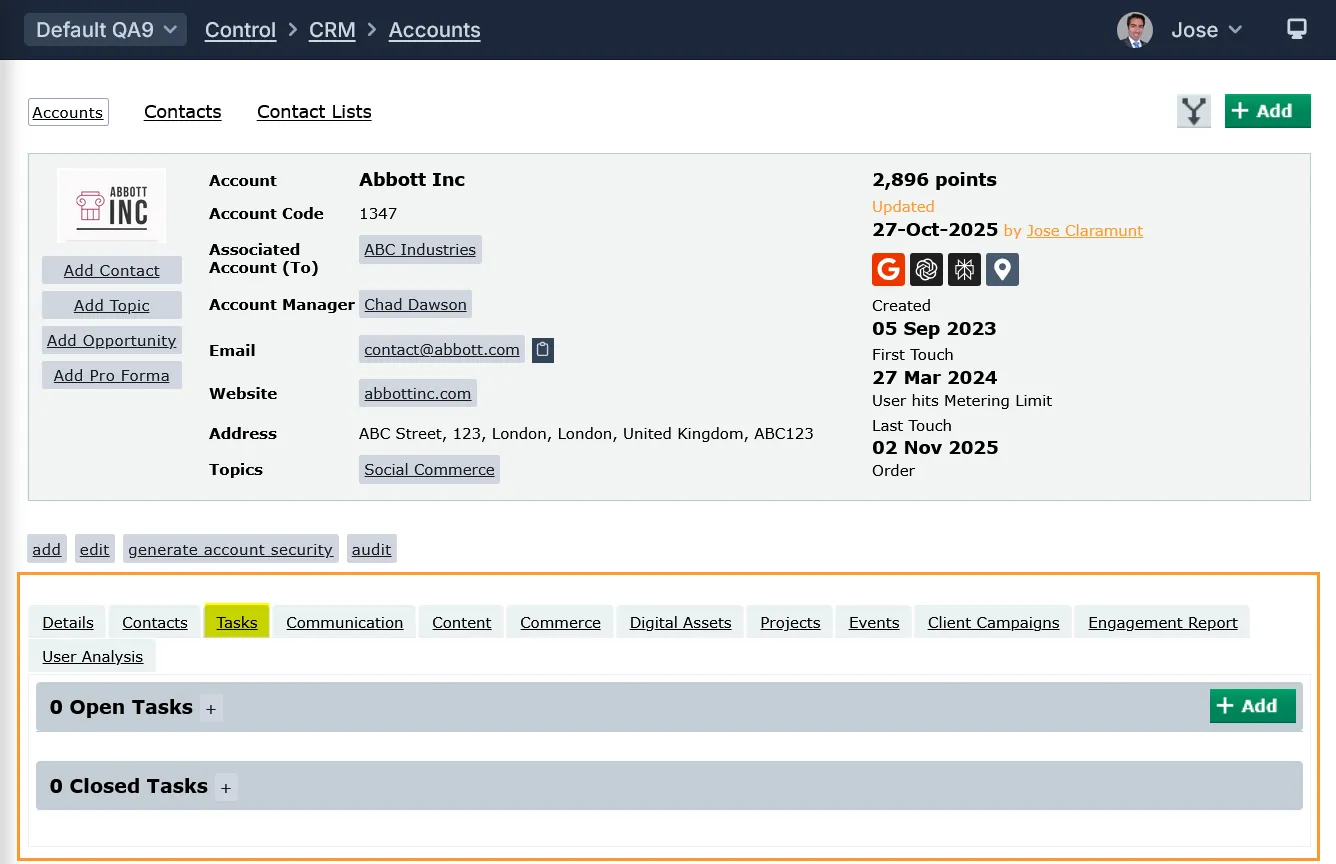
Tasks can be created and assigned to Accounts;
-- and Contacts:
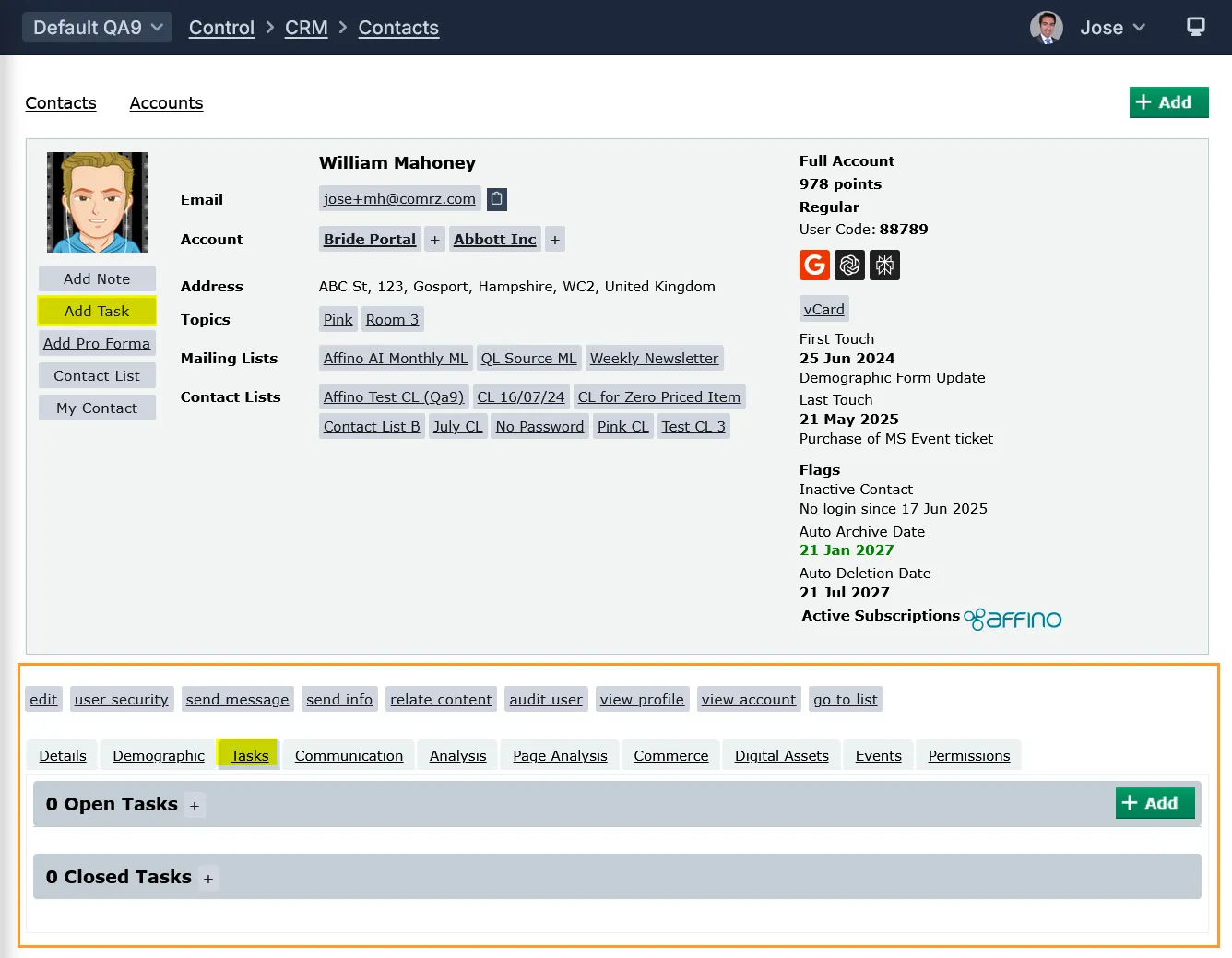
They can also be associated with Contact Lists via Conversion Events, Opportunities, Projects, Orders, and other entities.
Task Listing and Filtering:
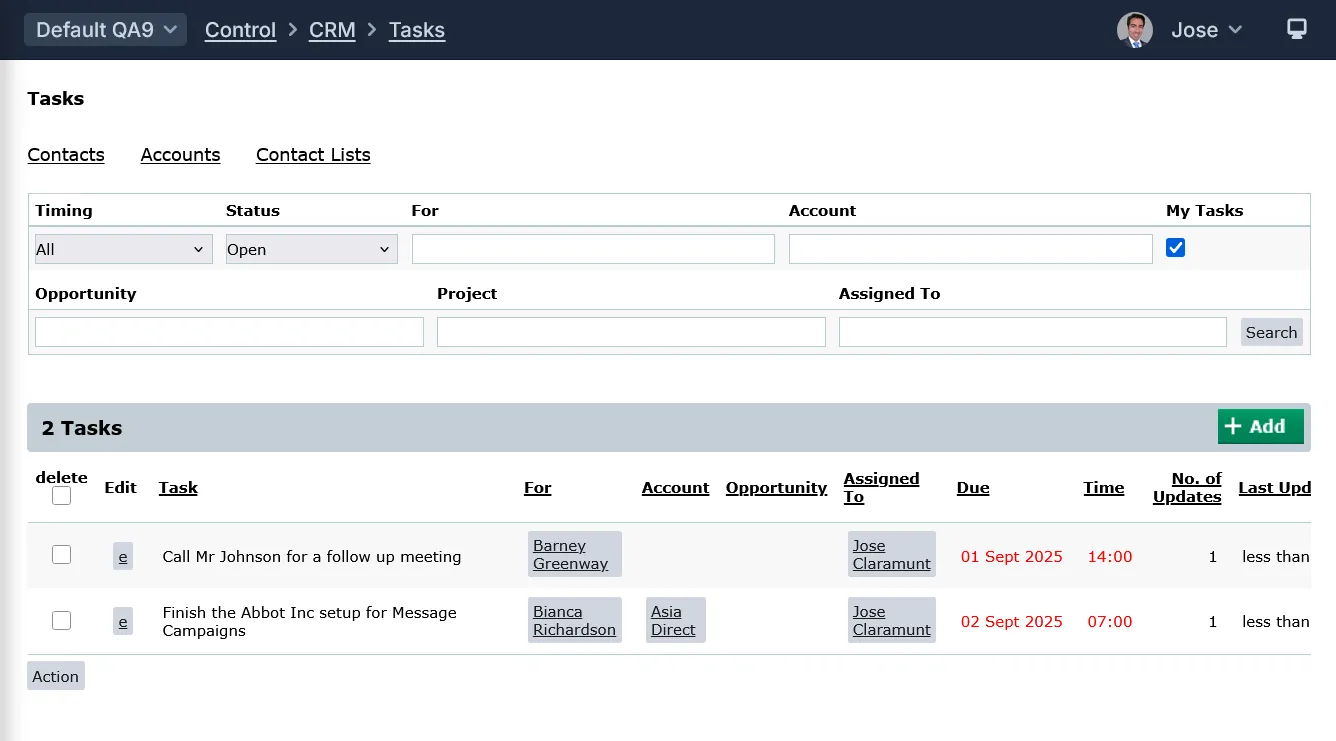
Tasks are listed with flexible filters and sortable columns, allowing users to view their own open tasks by default, or filter by timing (All, Upcoming, Today, Overdue), status, account, opportunity, assigned user, and more.
Task Editing and History:
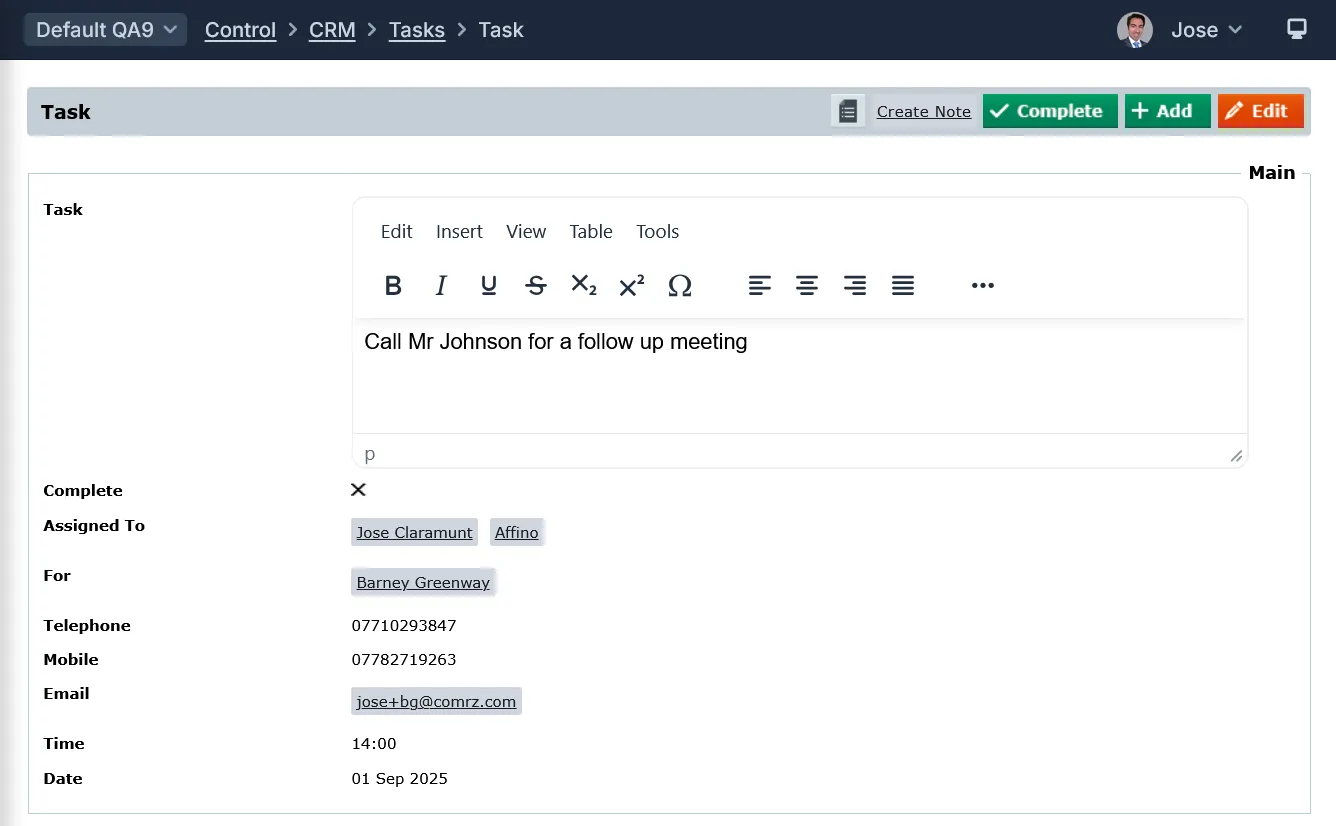
Tasks support inline editing with a memo field for task details.
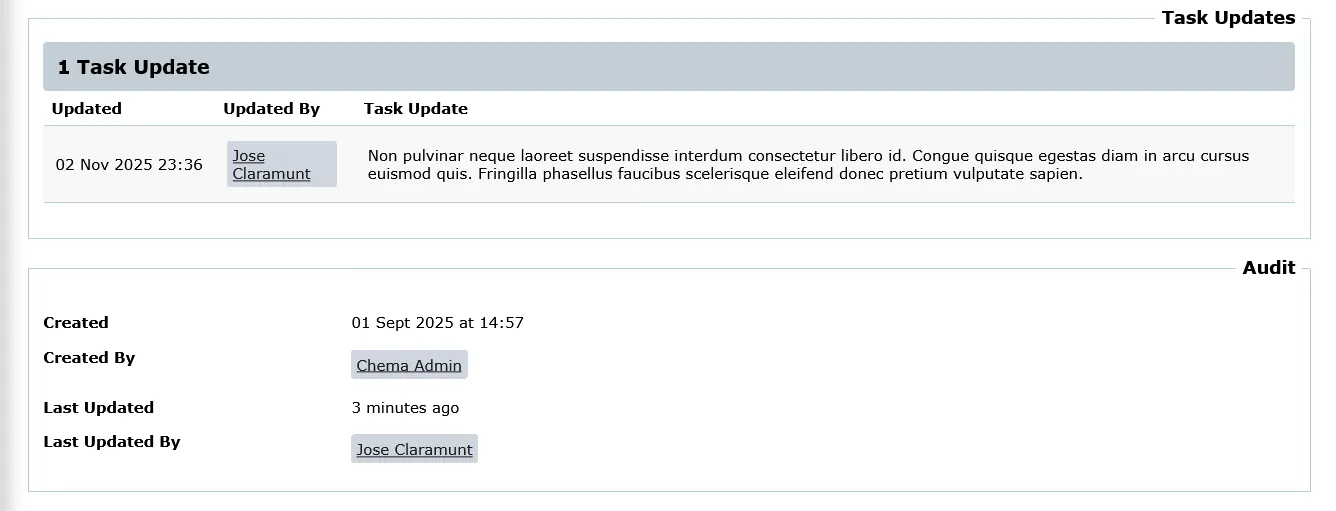
Each update to a task is logged automatically, preserving a full history with timestamps and user information, enabling collaborative workflows.
Task Notifications:
Notifications are sent to assigned users when tasks are created or updated, with controls to avoid self-notifications.
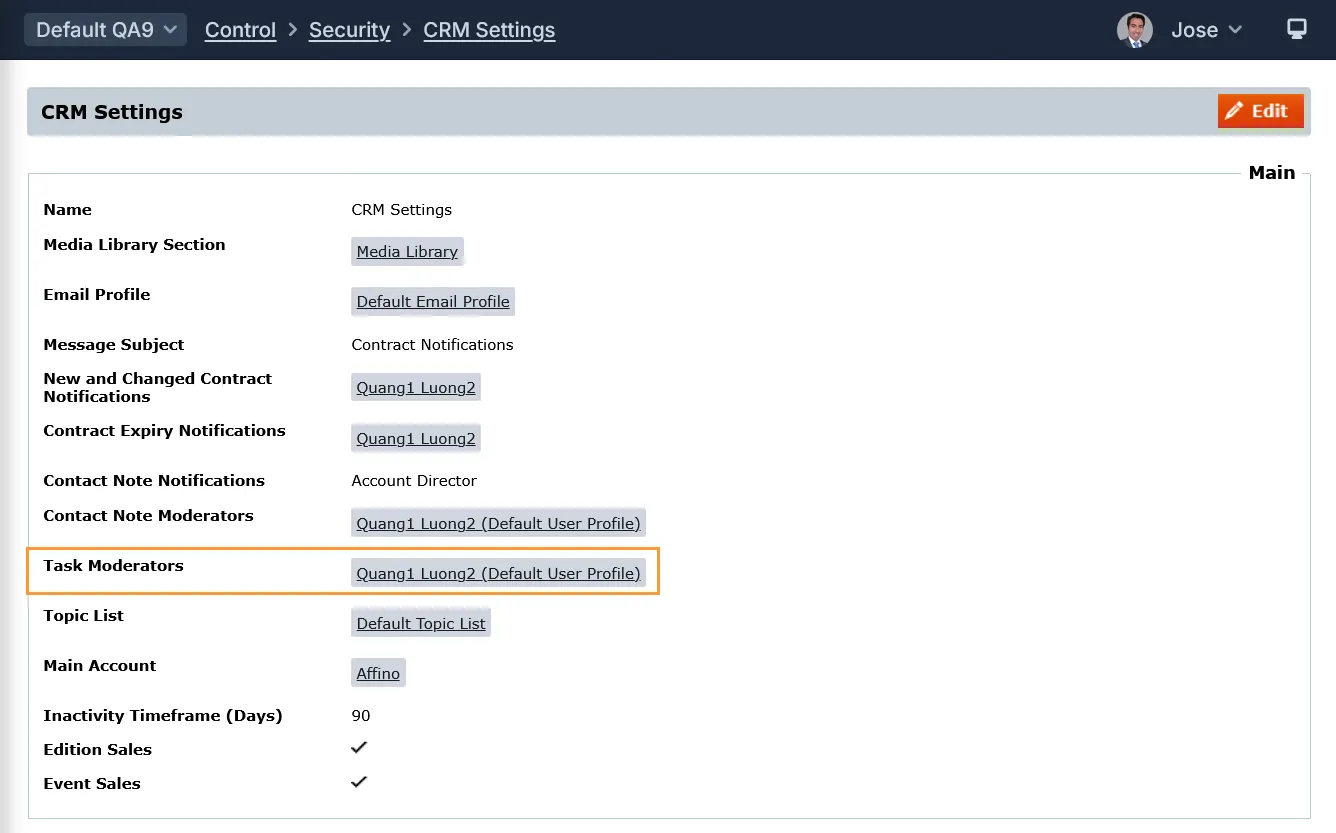
Also, Task Moderators, which are set on the CRM Settings screen, are notified of all Tasks (Task Moderators will always receive a notification).
Task Completion and Notes:
Tasks can be marked as done, and users can create Contact Notes directly from tasks and vice versa, facilitating seamless communication and record-keeping.
Task Listing
Filters and Sorting Options
- Timing Filter: Options include All, Upcoming, Today, Overdue; default is All
- Status Filter: All, Open, Completed
- For: Filter by contact
- Account: Filter by Account
- My Tasks: Default filter showing tasks assigned to the current user; this filter is session-sticky
- Opportunity: Filter by opportunity
- Project: Filter by project
- Assigned To: Filter by assigned user
- Search: button for executing the search
- Delete: checkbox for selecting a task for its deletion
- Action: clicking on this button will delete the selected task
Note: you can sort by clicking on the header of each column
Task Detail
Fields and Options:
- Task: Enter the full details of the task. More often than not this will be a simple one-liner to call the person on a given day
- Complete: Select when the task is complete
- Assigned To: Select the person responsible for this task. Notifications and Reminders will be sent to this Person
- For: Select the contact for whom the task is required
- Time: Select a reminder time for when the task is due (options are Hour and Minutes)
- Due: Select the reminder when the task is due (option are Tomorrow, 3 Days, 1 Week, 2 Weeks, Specific Day)
- Date: Select a reminder date for when the task is due.
Associations
- Opportunity: Select the Opportunity that this task is for
- Pro Forma Order: Select the Pro forma Order that this task is for
- Contact List: Select the contact list this task is assigned to
- Project: Please click here to select associated project
- Bill: Select the bill for this Contact Note
Integration with Other Functions and Screens
CRM Settings:
Control the displaying of "Show Next Task" on the Opportunity, Account and Contacts listing screens.
CRM Modules:
Tasks are integrated into Accounts, Contacts, Projects, Bills and Opportunities.
Conversion Events:
Tasks can be triggered automatically by conversion events, supporting advanced workflows like lead follow-up or support tasks. Tasks can also be linked to specific Contact Lists via conversion events.
Did you find this content useful?
Thank you for your input
Thank you for your feedback

Driving business at some of the world's most forward thinking companies











Our Chosen Charity


Meetings:
Google Meet and Zoom
Venue:
Soho House, Soho Works +
Registered Office:
55 Bathurst Mews
London, UK
W2 2SB
© Affino 2026