 Customer Support
 Contact Sales

 About
About


Messages and Invites
Overview
On the front end, the Messages and Invites functions are accessible via the My Account page, providing users with a streamlined communication and networking experience.
Note: Messages on the display-side differ from the Message Campaign and Message functions in the Control Centre
My Messages

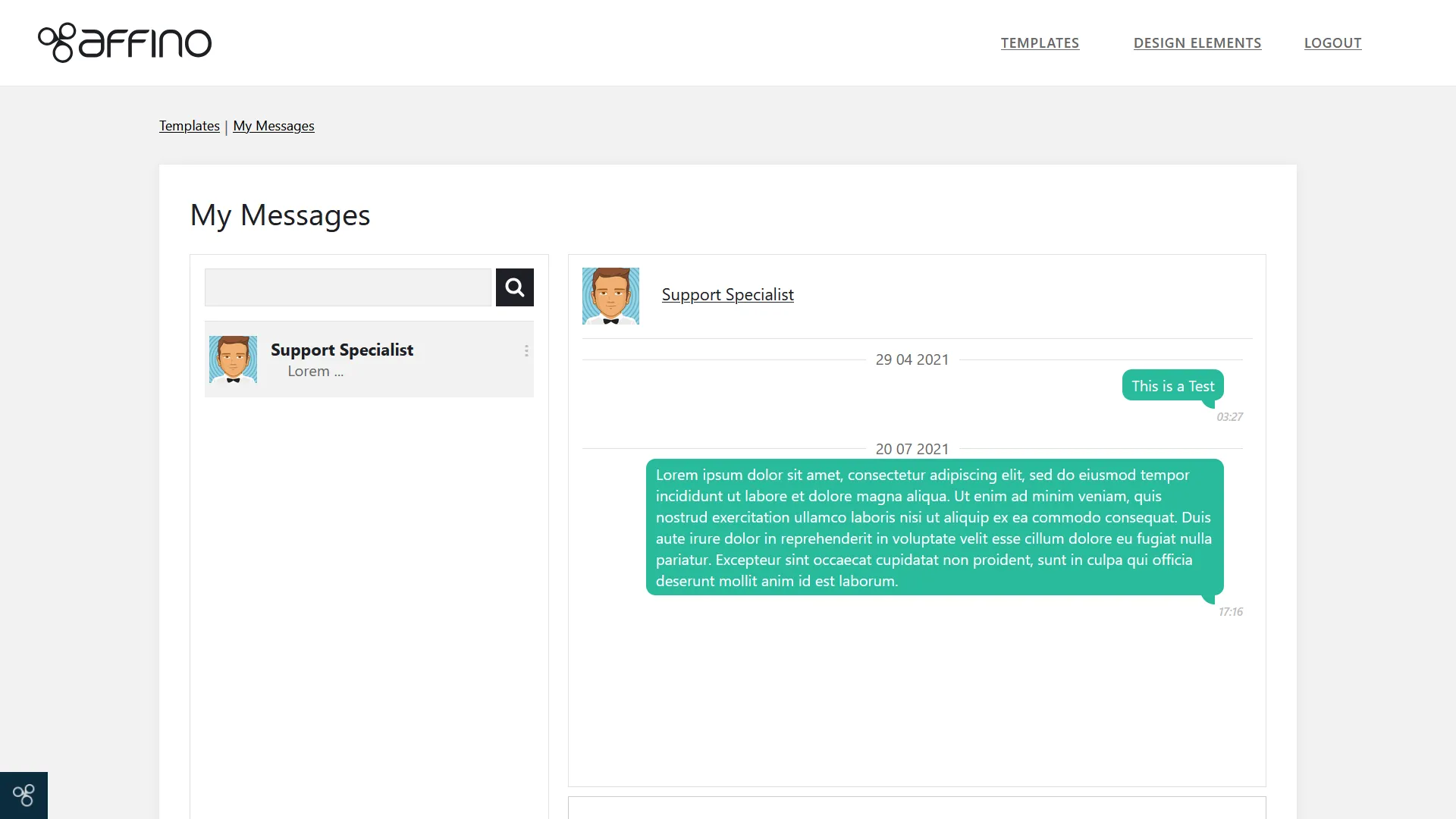
Messages on the My Account page use a conversation layout, allowing users to track message threads easily. When users access My Messages, they see a left column listing their conversations, each showing the contact's avatar, full name, and a preview of the last message (about 25 characters).
Selecting a conversation displays the full message thread on the right, with recipient messages aligned left and sender messages aligned right, each with timestamps and date dividers formatted per the user's time zone.
Unread messages are indicated with a bubble showing the count (up to 99+).
Users can search contacts in the conversation list using a predictive search input. The search results include contacts the user has connected with, account primary contacts with messaging enabled, and directory owners.
It supports live chat, enabling real-time conversations with approved contacts, suppliers, or community managers.
The Send button test is customizable from the My Message Profile (Control > CRM > My Messages Profiles).
Users can delete entire conversations via an ellipsis menu on each conversation.
If a user has no existing conversations, the interface encourages them to search contacts to start a new conversation.
Messaging permissions restrict users to message only their contacts or those they have accepted invitations from, except for community moderators who can message any user.
Notifications for new messages are sent via email using customizable templates, including banner images and introduction text, managed in the My Message Profile.
Invites
The Invites function is integrated under the 'My Contacts' menu as a sub-menu, separating it from Messages.
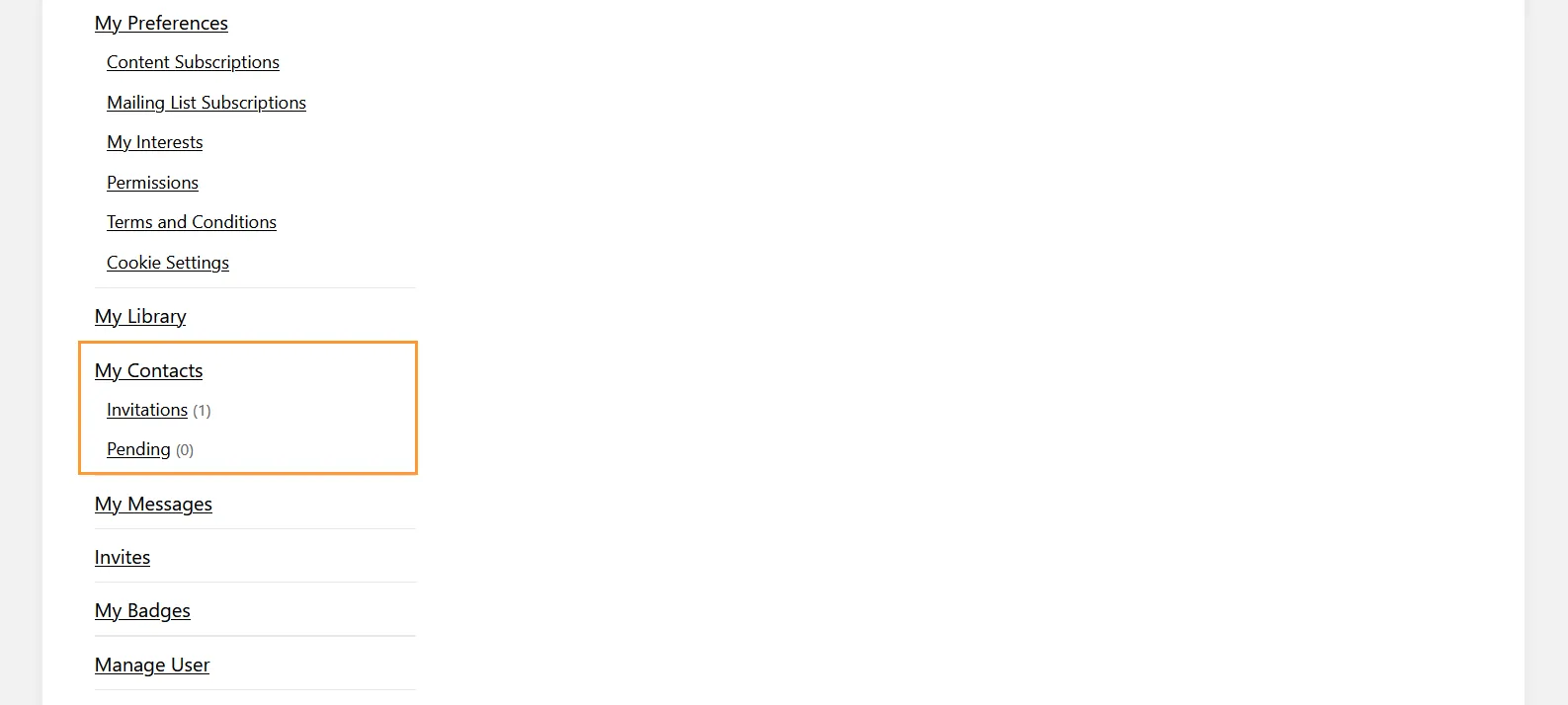
Users can send invitations to connect with other members from the Members listing. When an invite is sent, it appears in the "Invitations" tab, and the recipient sees it in their "Pending" tab until they accept or decline.

The interface shows the count of pending invitations and unread messages next to the respective menu links.
Users can send reminders for pending invitations, with safeguards to prevent spamming and notifications confirming reminder sends.
Invitations are managed with email templates that include header images and call-to-action buttons, ensuring consistent branding and user experience.
The system enforces that users can only message those who have accepted their invitations, maintaining privacy and control over communications.
Community managers have elevated privileges allowing them to message any user regardless of connection status.
My Messages Profile
Control > CRM > My Messages Profiles
The 'My Messages Profile' serves as a configuration and management tool for the front-end messaging function, which enables users to send and receive personal messages within the platform.
Its primary purpose is to control how messages are handled, displayed, and notified to users, ensuring a smooth and personalized communication experience.
Fields and Options:
- Name: Enter the Name that you wish to call this My Messages Profile. Please note that all entry fields designated with a tick mark are required fields.
- Profile Channels: Select the channels that use this My Message Profile.
- Spam Prevention Profile: Select an SpamPrevention Profile from the drop down menu that you'd like to apply to this My Messages Profile.
- Hide My Account Navigation: Select to hide the My Account Navigation on the left-hand side of the screen.
- Email Profile: Select the Email Profile for sending out email messages.
- Email Subject: Enter the Email Subject.
- Introduction: Enter the introduction text to appear in the email.
- Notification Banner: Upload a banner image you want to include at the top of the My Message email notification.
General Notes
Both Messages and Invites require users to be logged in; guests are redirected to login pages if they attempt to access these features.
The 'My Account' or 'My Profile' left-hand menu dynamically displays these options based on available channels and user permissions; currently, there is no manual option to customize or hide these menu items.
The design and layout are responsive, with mobile views featuring navigation aids like back buttons and adjusted spacing for usability.
In summary, on the display side, Messages provide a conversation-centric interface for users to communicate with their contacts and directory owners, with clear indicators for unread messages and easy search functionality.
Invites manage connection requests, pending approvals, and reminders, integrated under "My Contacts" for clarity. Both features are tightly integrated with user permissions and profiles to ensure secure and relevant communication.
Did you find this content useful?
Thank you for your input
Thank you for your feedback

Driving business at some of the world's most forward thinking companies











Our Chosen Charity


Meetings:
Google Meet and Zoom
Venue:
Soho House, Soho Works +
Registered Office:
55 Bathurst Mews
London, UK
W2 2SB
© Affino 2025