 Customer Support
 Contact Sales

 About
About


Incoming and Outgoing Feeds

Overview
Affino uses both Incoming Feeds and Outgoing Feeds, which are two separate syndication features that do opposite things:
- Incoming Feeds bring external content into Affino and turn it into articles, media items, jobs, or link articles
- Outgoing Feeds take content that already exists in Affino sections and expose it out as RSS for other systems to consume
This guide will show you how to set up and configure both types of feeds.
Incoming Feeds
Control > Content > Incoming Feeds
An Incoming Feed is a "pull" mechanism that allows Affino to listen to an external source (like another website, a job board, or YouTube) and automatically create or update items in Affino.
Instead of manual entry, Affino regularly reads these feeds and populates a target section with the content.
Common uses include:
- Importing job listings from third-party boards
- Syndicating articles from partner sites
- Pulling video content from YouTube
Configuration & Scheduling:
- Activation: Each feed has an "Active" flag that must be enabled for it to work
- Scheduling: You can set how often the feed runs (e.g., every 30 minutes)
- Manual Testing: You can use the manual "fetch / update" action to test the connection and force an immediate import
- Auto-Deactivation: If a feed URL fails to connect three times in a row, the system marks it as "Failed" and sets it to "Not Active" to prevent further errors. You must manually re-enable and save it once the external source is reachable again
How Data is Mapped:
| External Field | Affino Destination Field |
| Title | Title |
| Published Date | PublishedDate / DC_Date |
| Main Content | Text 1 / Main Body |
| Teaser | Description,Teaser (Optional) |
| Introduction | Introduction (Optional) |
By default, the system maps a small subset of fields from the external source into Affino.
Note on YouTube: For YouTube feeds, the video description is always placed in the Introduction field and will not be pushed into the Teaser.
Images and Media:
- Image Sections: If you select an Image Section in the feed settings, images will be stored in that specific media library
- Default Storage:If no specific section is set, images default to your general Media Section
Troubleshooting:
Sometimes a feed test/preview shows data, but nothing appears in your website's section listing.
Common reasons include:
- Invalid Profiles: A missing or invalid Media Provider Profile (like an expired YouTube API key)
- Setup Issues: Incorrect section setup or presentation styles
- Connectivity: The external URL is unreachable, which can be diagnosed using the system's detailed error logs and fallback HTTP calls
Incoming Feeds - Listing
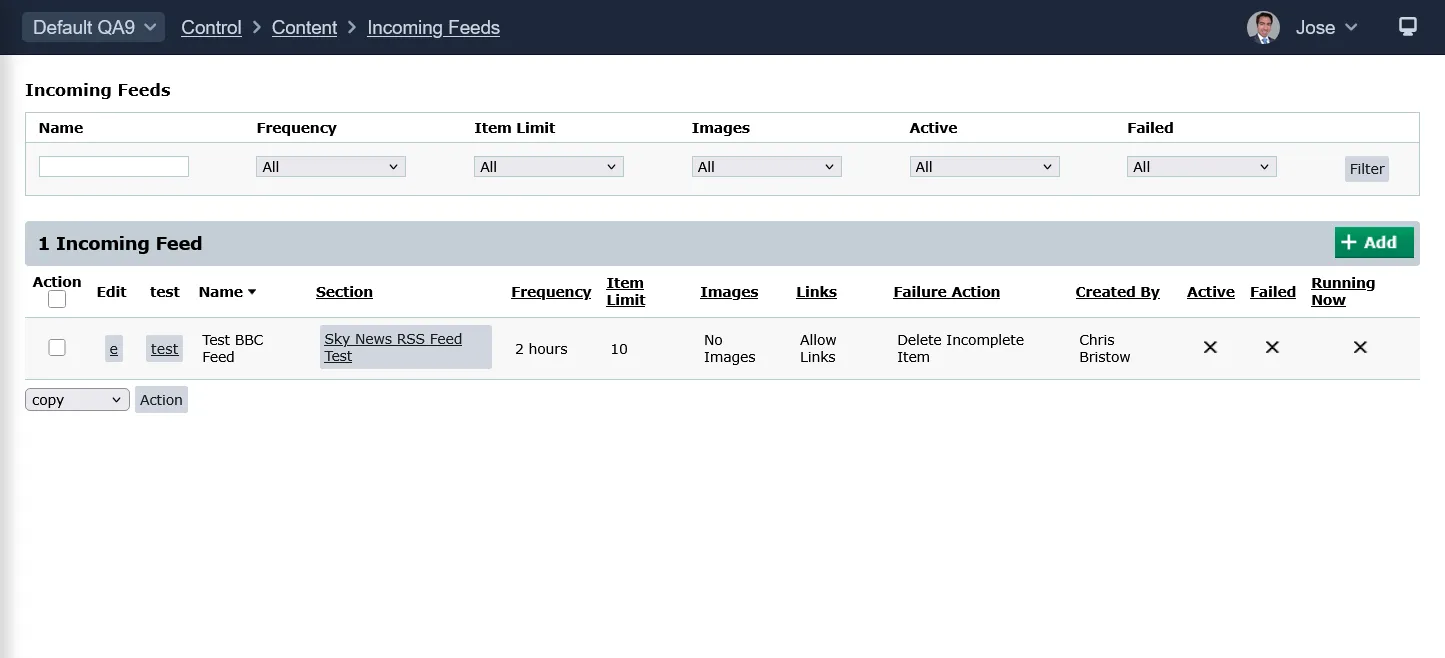
The Incoming Feeds listing screen is where all of your active and inactive feeds will appear.
Filters:
- Name
- Frequency
- Item Limit
- Images
- Active
- Failed
Columns:
- Action: select the checkbox and use one of the following functions (Copy, Delete, Reactivate)
- Edit: click to edit the feed
- Test: click this button to test the "Feed URL", to make sure it is valid
- Section
- Frequency
- Item Limit
- Images
- Links
- Failure Action
- Created By
- Active
- Failed
- Running Now
Set up an Incoming Feed
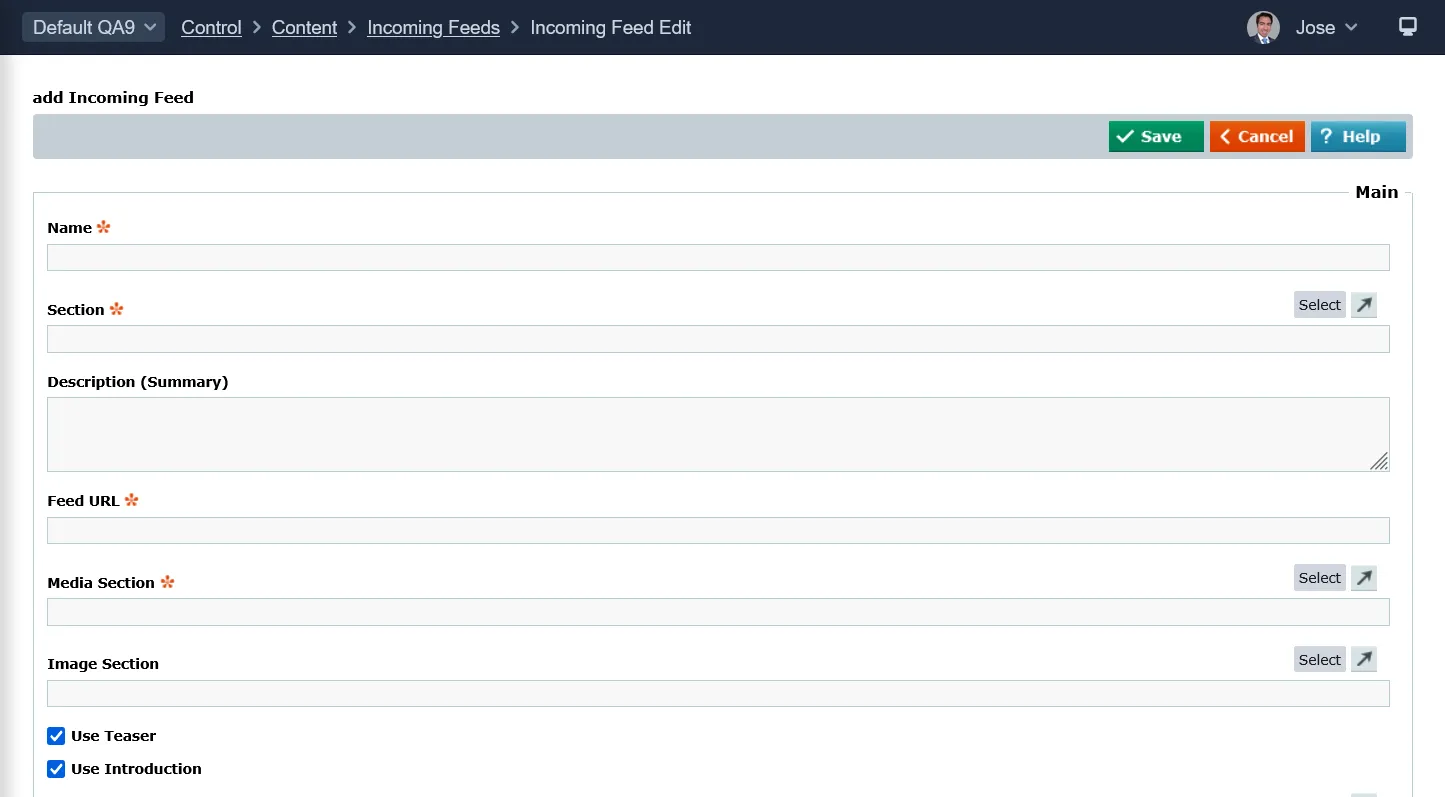
Control > Content > Incoming Feeds > Incoming Feed Edit
These are the fields and settings that you need to fill out, in order to create an incoming feed:
- Name: Add a name for the feed
- Section: Select the Section for the Incoming Feed
- Description (Summary): Add a description so you can identify the purpose of the feed
- Feed URL: Enter the URL for the feed that you'd like to import
- Media Section: Select the Media Library Section that will hold the uploaded media items This includes Documents, Video, Audio and Images If you would like to store uploaded images in a different Media Library, please use the Image Section field below
- Image Section: Select the Media Library Section that will hold the uploaded images media items If blank, then Images will be stored in the Media Library selected above (Media Section)
- Use Teaser: Select this option for the feed to use the teaser field on Articles/Media Items
- Use Introduction: Select this option for the feed to use the introduction field on Articles/Media Items Eg YouTube video description goes to the Introduction field on the Media Item
- Presentation Style: Select the Presentation Style for imported items
- Article Type: Select the Article Type for the generated article
- Teaser Length: Enter the number of characters taken from the main content for the teaser
- Update All Content: Select this to automatically replace all existing media in the feed instead of simply pulling in new content Please note that all your existing media will be deleted and replaced in the media section above This option is not available if the frequency is set to 30 seconds, 30 minutes or 1 hour
- Multi Display: Select additional Sections to display this Item in from the list; if the Section you seek is not visible, it will need to be entered in Section
- Frequency: Choose the frequency of each refresh
- Item Limit: Select how many items to get on refresh The system will get all the new items available up to the limit defined
- Prevent Duplicate Titles: Select how you wish to ensure that no content from the feed has the same title as existing content within the section This can prevent badly-formed feeds from importing duplicates
- Duplicate Character Count: Enter the number of characters you want to check for in the duplicate check This will then check any incoming content for the first X characters of the title This is essential to reduce the amount of repeated press releases and re-Tweets
- Images (First Image Only, Allow External Images, No Images): Select whether or not you want to import and generate the image / thumbnail
- Links (Allow Links, Strip Links): Select whether or not you want to allow links or strip links
- Podcasts (No Media Import, Embedded Media, Import Media): Select how media is handled
- Failure Action (Make Live Without Media, Delete Incomplete Item): Select the action you want should a media item not be obtainable for an incoming article
- Re-Use Media Items: Select if you wish to re-use existing media items which have been imported in the feed, instead of repeatedly re-importing the same media items This creates a much improved media presentation and greatly reduces the storage requirement and cost
- Prevent Duplicate Media Titles: Select to prevent duplicate media items from being created in the media library This is especially important for embedded media and will greatly improve the performance
- Clean Up Content: Select this to for Affino to clean up the content, this may include removing bad links and formatting from the incoming content
- Preserve Source Date: Enabling this will always set the Publish Start Date on the Affino Item as the source item created date
- Keyword Filtering: Use the Keyword Filter to exclude off-topic content This frequently occurs where similar words are used in completely different contexts, or if you wish to exclude specific individuals and companies Enter the keywords comma separated and use quotes around multi-word filters, eg "spammy content"
- Security: Select a security restriction to be applied to the article
- Syndicate: Select whether you want to allow articles to be syndicated on
- Created By: Select who is assigned as the content creator for the imported articles
- Integration Script: Select the Integration Script used for interaction with the data
- Active: Select whether or not the Source Feed is active
- Taxonomy: Select if you want Taxonomy
- Specified Keywords: Enter in the Keywords (and Topics) you want to be automatically associated with the incoming feed content Essential for Topics channels
- Index All Words: Select to do the full index of the content of this feed as per the Search Settings Note that this is strongly advised against unless you specifically want to search within the full content of this feed Instead you should rely on the Taxonomy to extract the key terms
Note: not all fields and settings are obligatory, only the ones with the 'star' icon are mandatory
Outgoing Feeds
Control > Content > Outgoing Feeds
An Outgoing Feed is a "push" mechanism that exposes content from a specific section of your site as an RSS feed. This allows external platforms and tools to "consume" your content automatically.
Typical consumers include:
- Social Media Tools: i.e. Sendible or Echobox3
- News Aggregators: Google News / Publisher Center
- Distribution: Email tools, homepage widgets, and generic RSS readers
Configuration & URLs
- Per-Section Setup: Feeds are configured for one specific section at a time; the system supports one RSS feed per section
- Global Feeds: A "whole-site" feed is not available
- Feed URL: The add/edit screen provides a direct Feed URL. A "copy to clipboard" button is available to ensure you get the live link correctly without unnecessary parameters
- Encoding: All feeds are UTF-8 encoded, making them compatible with modern external systems
Controlling What Content Appears
Outgoing feeds do not automatically include every article. Inclusion is governed by three main filters:
- The Syndication Flag: Articles must have the Syndication tickbox enabled to be eligible for the feed. If a feed appears empty despite having content in the section, this is the most common cause
- Security Filters: You can apply a Security Filter (e.g., Subscriber-Only) to the feed
- If the filter is blank, the feed will only include unsecured articles
- If your articles are secured but the feed filter is blank, the feed may appear empty or cause XML errors
- Workflow/Approval: If the feed is set to "Only Approved Content," items currently in the workflow inbox awaiting approval will not show up
Feed Payload and Sorting
Sorting:
The feed follows the section’s sort order, though only specific types are supported for RSS:
- Chronological
- Alphabetical (and reverse)
- Manual "Sort Order"
Note: Popularity-based sorts (like "Most Read") are not currently available for RSS. To automate a "Most Read" newsletter, you should point your campaign at a specific section rather than an RSS feed.
Content (The RSS tag):
- Standard (Full Story Disabled): The feed provides the first 500 characters from the Teaser or Introduction
- Full Story Enabled: The feed can include the Lead Image, Introduction, Information Boxes, Text fields 1–4, and Credits
- Stability: The feed uses a unique item identifier (guid) based on the internal item code. This ensures the feed remains stable even if you change the article's title
Troubleshooting Common Errors
If you see an "XML Parsing Error: no element found," it usually means the feed is empty.
Check the following:
- Ensure Syndication is ticked on your articles
- Verify that the Security Filter on the feed matches the security settings of your articles
- Confirm all items have been Approved if the workflow filter is active
Outgoing Feeds - Listing
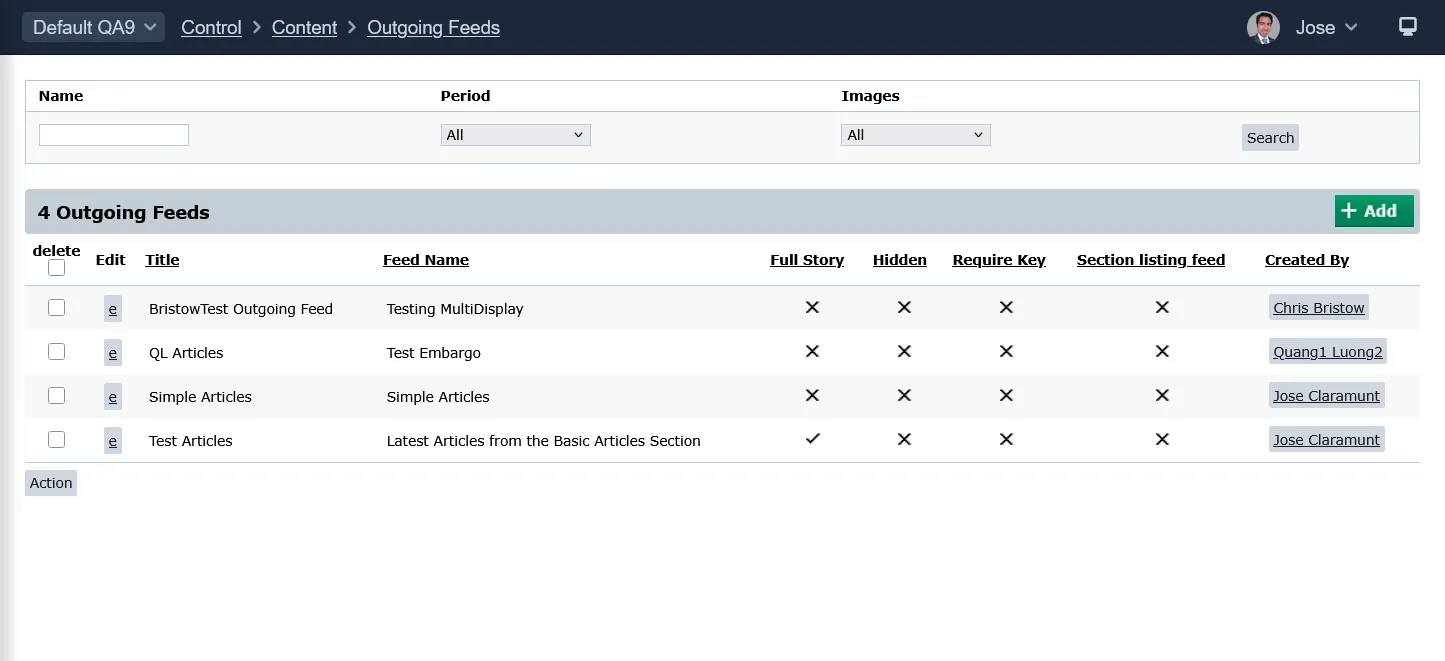
The Outgoing Feeds listing will display all of the feeds that you have set up/created.
Filters:
- Name
- Period
- Images
Columns:
- delete (select the checkbox then click action for the feed to be deleted)
- Edit
- Title
- Feed Name
- Full Story
- Hidden
- Require Key
- Section listing feed
- Created By
Set up an Outoing Feed
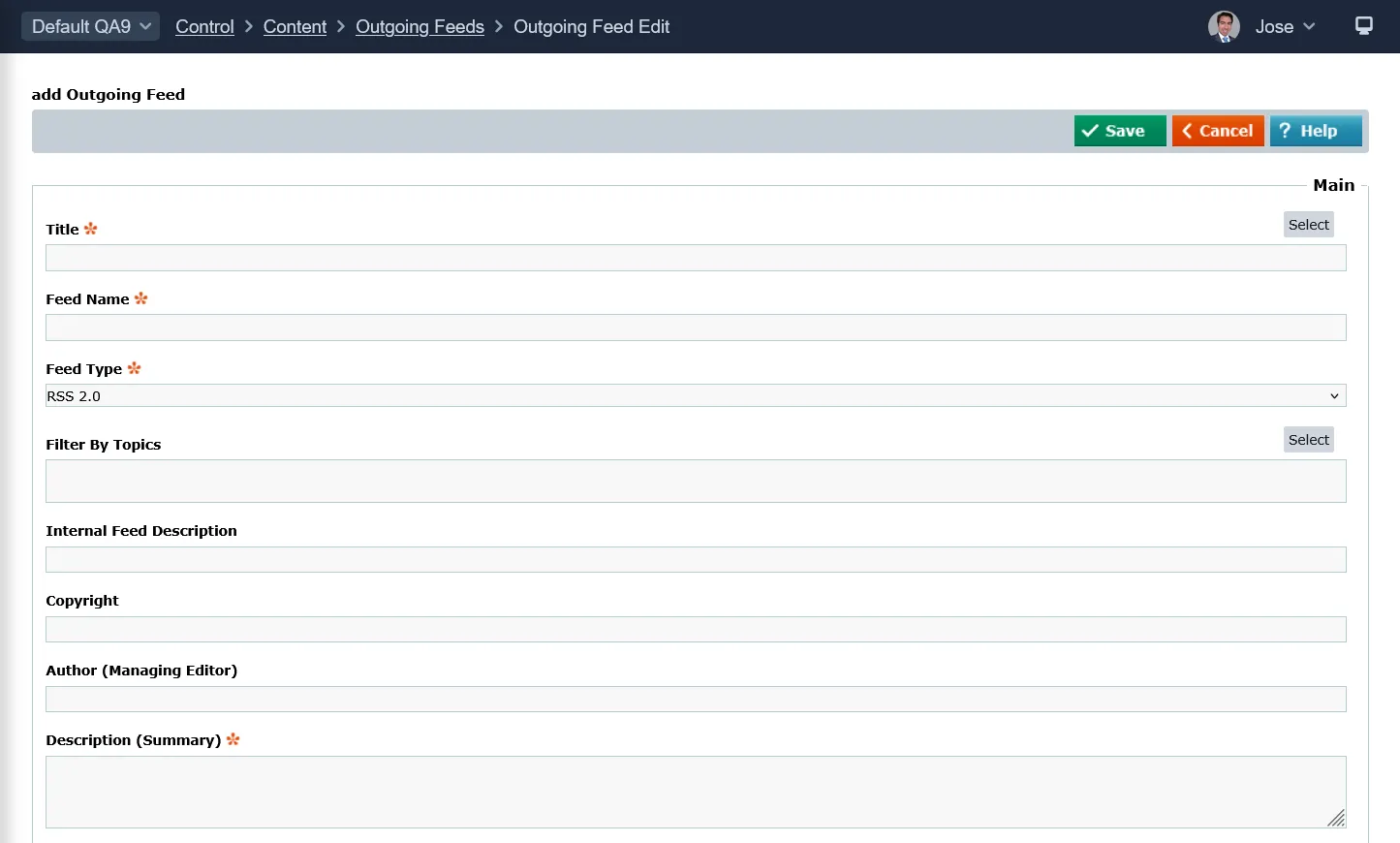
Control > Content > Outgoing Feeds > Outgoing Feed Edit
Fields and Settings:
- Title: Choose the section for the feed, the title is given the same name as the section.
- Feed Name: Enter the Public Feed Name, this must be unique.
- Feed Type: Please select the feed type that you'd like this feed to be. You can add numerous feeds with different feed types to a section.
- Filter By Topics: Select topics to filter the content displayed in the feed.
- Internal Feed Description: Internal description for the feed to help distinguish between feeds
- Copyright: Copyright notice for content in the section.
- Author (Managing Editor): This is used to specify the email address of the person responsible for editorial content.
- Description (Summary): Enter a phrase or sentence describing the section.
- Images: Choose which images if any to display in the feed.
- Full Story: Select to display the full content or just the teaser in the feed.
- Only Approved Content: Select this to only display approved content in the feed if you are using Publshing Workflows for the content.
- Period: Select the period over which the section typically is updated
- Frequency: Enter the frequency of updates in relation to the update period. A positive integer indicates how many times in that period the section is updated, e.g. an update period of daily, and update period frequency of 2 indicates the channel is updated twice daily.
- Maximum Item Number: Select the maximum number of items to be listed
- Hidden: Select to hide the feed, this feed will be available, but will not be visible publicly.
- Require Key: When you select the require key box, all those wanting access to the feed must have the 128 bit key as part of the feed link they are calling. This protects the feed as only those who have the key can access it.
- Section Listing Feed: Click to display this as the primary feed for a section. Only 1 feed per section can be the primary feed. This is shown in the page as the subscribe link. The feed will NOT be shown if it is hidden or a key is required.
- Owner Name: Add Podcasting Owner Name. This is not displayed anywhere it is for the contact purpose only.
- Owner Email: Add Podcasting Owner Email. This is not displayed anywhere it is for the contact purpose only.
- Syndication Image: Syndication Image Select an image to be displayed with the podcast.
- Security: Select the secured content you wish to include in the feed. If you do not select additional securities then only unsecured content will be included in the feed.
Did you find this content useful?
Thank you for your input
Thank you for your feedback

Driving business at some of the world's most forward thinking companies











Our Chosen Charity


Meetings:
Google Meet and Zoom
Venue:
Soho House, Soho Works +
Registered Office:
55 Bathurst Mews
London, UK
W2 2SB
© Affino 2026