 Customer Support
 Contact Sales

 About
About


Sales Overview Guide
Overview
Managing Sales in Affino uses a number of different elements and some of these require specific Sales security including Pro Forma Orders, Accounts and Contacts. Please refer to the Affino Security Guide or Contact your Local Security Administrator for further details.
This Guide provides an overview of the following Sales related tasks:
- Accounts
- Contacts
- Contact Notes
- Contact Lists
- Tasks
- Opportunities
- Pro Forma Orders
- Invoices
- Orders
- Sales Leaderboard
Note that there is plenty of on-screen help when managing any of these elements so make sure you have both the introductory help panel expanded and turn on the help when editing any of the items.
Also, please be aware that you will need the "Commerce" and "Order Processing" system security rights to use the Orders, Order Processing and Pro Forma Orders screens.
Accounts
Customer Accounts are at the heart of the Affino CRM and can be found under the ’Social’ Tab in Affino.
From the MANAGE COMMUNITY menu, click on the Accounts link to view the Accounts Listing and select ’My Accounts’ to see only those Accounts which are assigned to you.
You can quickly view ’at a glance’ all Customer Activity by selecting one of the following Tabs:
- Details - such as Account Manager, VAT number, Addresses and other Company specific information
- Communication - manage contacts, contact notes and tasks. You can see when the last contact was made with the Client via the ’last touch’ date on the Account
- User Analysis - in depth review of Customer Activity and Engagement profile
Page Analysis - This showcases the full set of usage stats on the account page, including the views chart, recent account and users, and referring URLs
Commerce - Opportunities, Contracts, Invoicing History and Outstanding Invoices
Digital Assets - Contacts that are associated to the Account will have their subscriptions listed in this panel
- Projects - Project History and prepaid project days.
Events - Contacts that are associated to the Account will have their Awards Entries and Event Attendance records listed in this panel
- Content - Product Articles and Directory Articles associated to the Accout will be listed in this panel
Contacts
Customer Contacts, together with their Accounts are at the heart of the Affino CRM and can be found under the ’Social’ Tab in Affino.
From the MANAGE COMMUNITY menu, click on the Contacts link to view the Contacts Listing, select ’My Contacts’ to see only those Contacts which relate to you.
You can quickly view ’at a glance’ all of your Contact’s Activity by selecting one of the following Tabs:
Communication - manage contact notes, message and tasks. You can see when the last contact was made with the Client via the ’last touch’ date on the Account.
Details - Personal information, Sales targeting such as topics and keywords, Demographic data from their registration profile addresses, contact lists and much more.
Analysis - in depth review of their Activity and Engagement profile.
Commerce - Shopping Carts, Store Credits and Purchases made.
Digital Assets - Subscriptions or any other digital assets purchased or assigned to the Contact.
Note that there is plenty of on-screen help when managing any of these elements so make sure you have both the introductory help panel expanded and turn on the help when editing any of the items.
Contact Notes
You can create Contact notes for either an Account or a Contact and they can be seen at a glance on the Communication tab.
You can also link the Contact Note to any of the following:
- Project
- Opportunity
- Production Element (creative associated with Digital Publishing)
- Contract
- Broadcast Event
- Invoice
- Pro Forma Order
Note that there is plenty of on-screen help when managing any of these elements so make sure you have both the introductory help panel expanded and turn on the help when editing any of the items.
Contact Lists
Contact Lists are a useful way to group your Contacts for mailing list, message campaigns and other sales activities. You can tag contact lists with specific keywords or topics for targeting purposes.
Contact Lists have five main tabs:
1. Contacts - the contacts that have been added to the Contact List.
2. Tasks - any contact tasks that have created to support the Contact List.
3. Communication - Contact Notes and Message history.
4. Analysis - Contact List Engagement and Activity profile.
5. Commerce - Opportunities created as a result of the Contact List.
Tasks
You can create and manage a task for an Account or a Contact, assign it to an individual User and any notes required for them to carry out the task.
The task can be set a reminder by date, time or time frame so that a reminder will be displayed to the person responsible for the task.
These tasks are stored against the Account in reverse chronological order and can been seen at a glance on the Communication tab for the Account.
You can also link the Task to any of the following:
- Project
- Opportunity
- Invoice
- Pro Forma Order
Opportunities
Opportunities helps manage potential sales or business deals. They are used to manage the sales pipeline, allowing businesses to track potential deals from inception to closure. This includes tracking stages such as prospecting, proposal, negotiation, and closed.
Opportunities can be linked with contracts, allowing for seamless transition from potential deals to formal agreements.
In terms of reporting, Affino has the Opportunity Analysis screen, which serves to analyse opportunities, including monthly projections and detailed reports. This analysis screen helps in understanding the sales pipeline and making informed business decisions.
Opportunities can be easily created from the Accounts Screen or within the Social Tab under the CRM Menu.
Sales can filter their Opportunities lists using various 'quick' filters for example 'My Opportunities' or Opportunities that have been tagged with specific keywords.
Opportunities can also be associated with a specific Contact List (Sales Campaign) for reporting and tracking purposes.
The Opportunity Analysis Tool provides Sales with the following breakdown of information:
- Top Opportunities
- Opportunity by Stages
- Monthly Projections (next three months)
- All Open Opportunities
You can create multiple Opportunities for a single Account. This flexibility allows you to track different sales opportunities or projects associated with the same Account.
Note: a user needs to be associated to the Main Account, which set on the CRM Settings screen, in order to be the Owner of an Opportunity
Pro Forma Orders
The Pro Forma Order is essentially the Order which is sent to the Client for signature and payment. It supports Tax Exempt selling and invoicing.
For Subscription based products, the corresponding ordered quantity of Subscriptions are automatically created from the Order and can be assigned to the individual using our Subscription Management Module, please see Subscriptions Set Up Help Guide for further details.
The Order can be 'reassigned' to another Person, for example a reseller purchasing on behalf of a Third Party.
Discount can be applied to individual order lines or as a once off overall order discount. There is also the flexibility to apply the discount as a percentage or a fixed value.
From the Commerce Tab, select 'Add' button next to the Pro Forma Orders link within the 'Manage Commerce' Menu.
It's useful to click the blue 'Help' button at this point and follow the instructions if needed.
Copy Pro Forma Orders
It is now possible to copy a pro forma order.
This is done by clicking on the Copy button at the top right hand corner of the pro forma:
When the item is copied, the name the Pro Forma will appear as “Copy of xxx” as standard.
After this, you will be immediately redirected to the Edit screen and were you will validate the form (see business rules).
Copied Fields
- Tax Exempt
- Pro Forma Order Owner
- If the user is Suspended or Archived, this is set to blank
- Pro Forma Order Type
- Set to Renewal by default
- Sub Order Type
- Customer Order Note
- Team Order Notes
- Store Profile
- Will be copied if it exists and is Live
- Terms & Conditions
- Will be copied if T&Cs is Live
- Payment Method
- Will be copied if Payment Method is Live
- Invoice Profile
- Will be copied if Invoice Profile is Live
- Customer Account
- If the Account is not Active this is set to blank
- Customer
- If the user is Suspended or Archived this is set to blank
- End User
- If the user is Suspended or Archived this is set to blank
- CRM Topics
- Address
- Billing Address setting
- Shipping Address settings
- Select Currency
- Each Catalogue Item Row but do not copy Edition or Fulfilment Date
- Catalogue Item Override
Note: the Previous Order will be updated if one exists from the copied Pro Forma Order.
Update status depends on whether it is Pending Renewal / New Business / Renewal / New Business.
Business Rules
- When the Pro Forma is copied, you will be redirected to the edit screen and additional validation will run.
- Warnings will be displayed in red at the top.
- If each Catalogue Item is not On Sale a warning will be displayed:
- "Catalogue Item [XX] is not on sale, please delete or select a different Catalogue Item before saving."
- If each catalogue item has a renewal catalogue item, this warning will be displayed:
- "The Catalogue Item [XX] has a renewal Catalogue Item. Please update if necessary."
- If the address is different from the Main address, this warning will be displayed:
- "The address copied is different to the user's Main Address, please update as required."
- You can use the select address to choose the updated Main address
Invoices
The Invoice is generated within the Pro Forma Order by simply clicking the 'Create Invoice' Icon.
A PDF version of the Invoice is generated and opens in a separate tab for review. From within the Invoice, you can email it directly to the Client by clicking the 'Send Invoice' icon and following the on screen instructions.
Orders
Creating the Order will effectively convert the Pro Forma Order to an officially signed order.
The signed order can be uploaded and stored on the Pro Forma before creating the Order.
It's worth being aware that once the Order is created from the Pro Forma, the order lines can no longer be changed.
You can still add notes and other useful information and crucially, manage the order status here.
The other standard order processing activities are also available from the Order such as issuing Order Confirmation, Invoice Printing, Shipping Label generation and Despatch Notification.
Taking Payment
Payments:
Apart from users going through the Checkout process, payments can be made by using these two functions:
- Send Payment Link
- Take Payment
Payment Link
The Payment Link functionality enables customers to complete payments via Stripe or GoCardless through emailed links, without requiring login credentials.
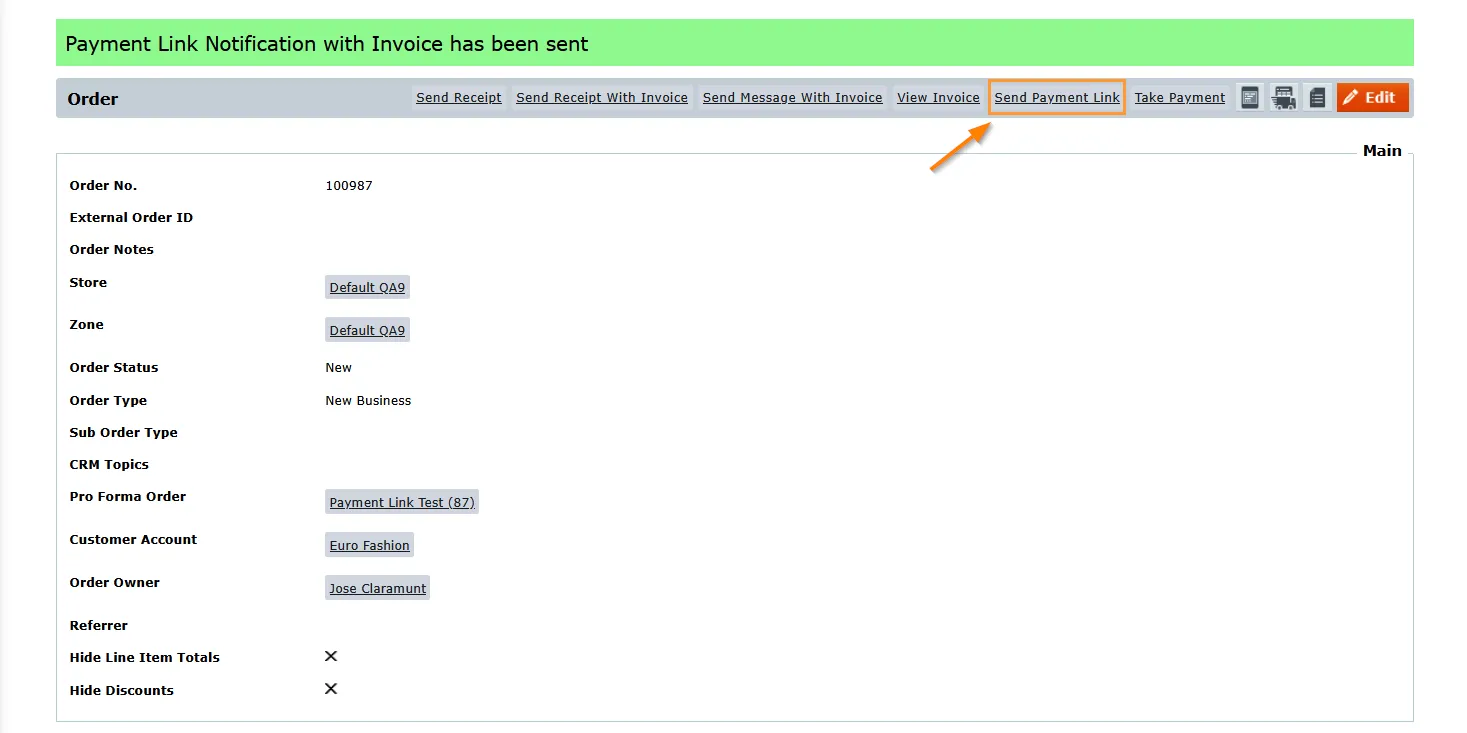
1.- Sending the link
Use the Send Payment Link button on an Order to send an email to the customer which contans the payment link.
2.- Link Activation
When users click the payment link from within the email they are redirected to Checkout page for payment.
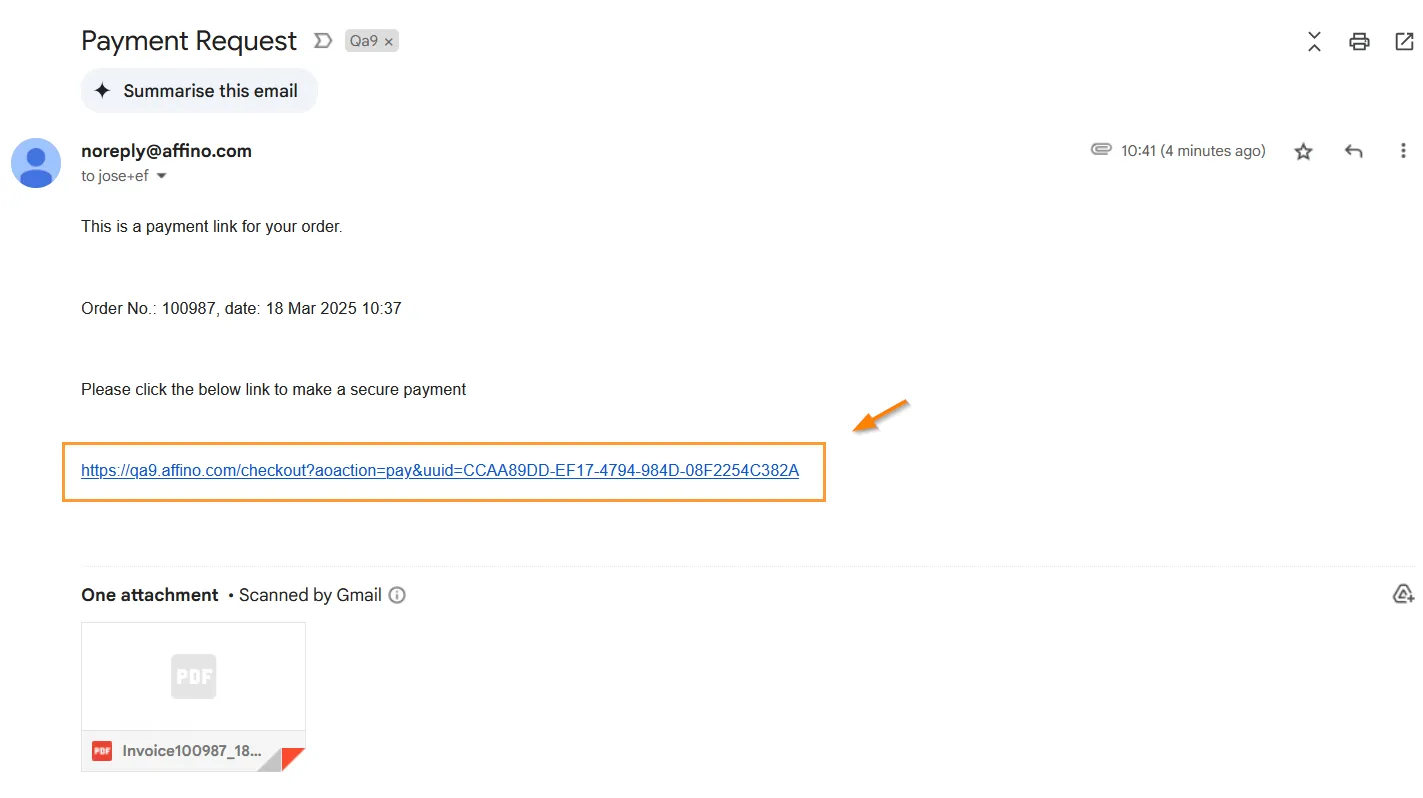
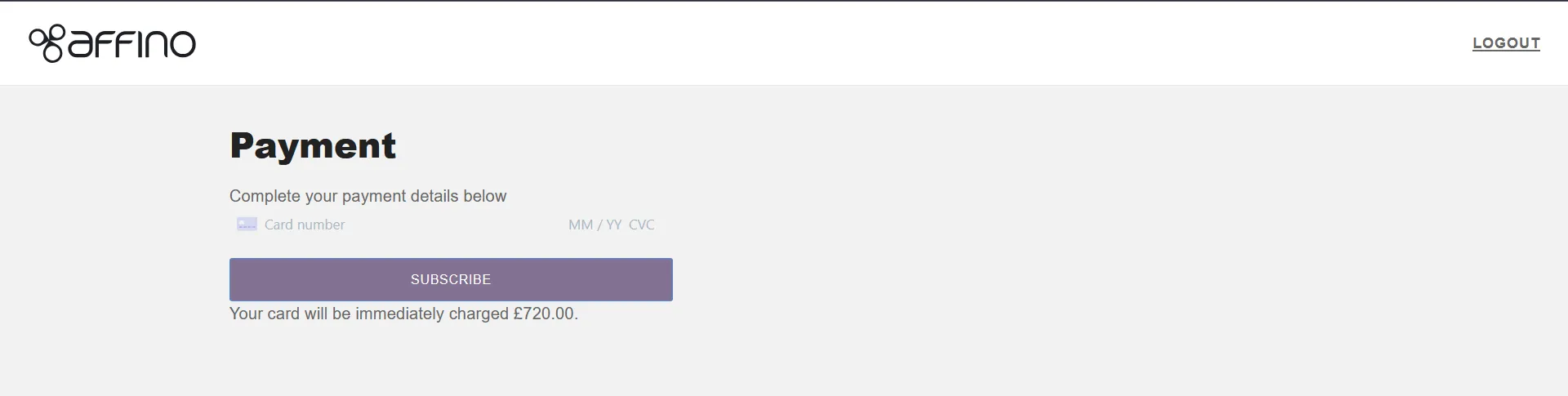
Affino checks the order's status using the UUID identifier in the link.
An error message is displayed if any of these scenarios occur:
1. Order was already paid: "This order has already been paid"
2. Order was cancelled: "This order was cancelled"
3. Order does not exist: "This link is invalid. Please contact customer services for more information"
4. Order Status is not "New" and Payment Status is not "Not Paid": "This link is not valid and cannot be paid using this method."
If the payment is successful, Affino will display the order confirmation screen and send the order confirmation email.
Take Payment
The Take Payment functions works with orders that are associated to Pro Forma Orders.
When an internal user or CRM Admin clicks the "Take Payment" button on an order that has an Unpaid status and an associated Pro Forma, they are redirected to the Order Payment screen. This screen is designed to handle payments through GoCardless or Stripe, depending on the payment method selected on the Pro Forma and carried over to the order.
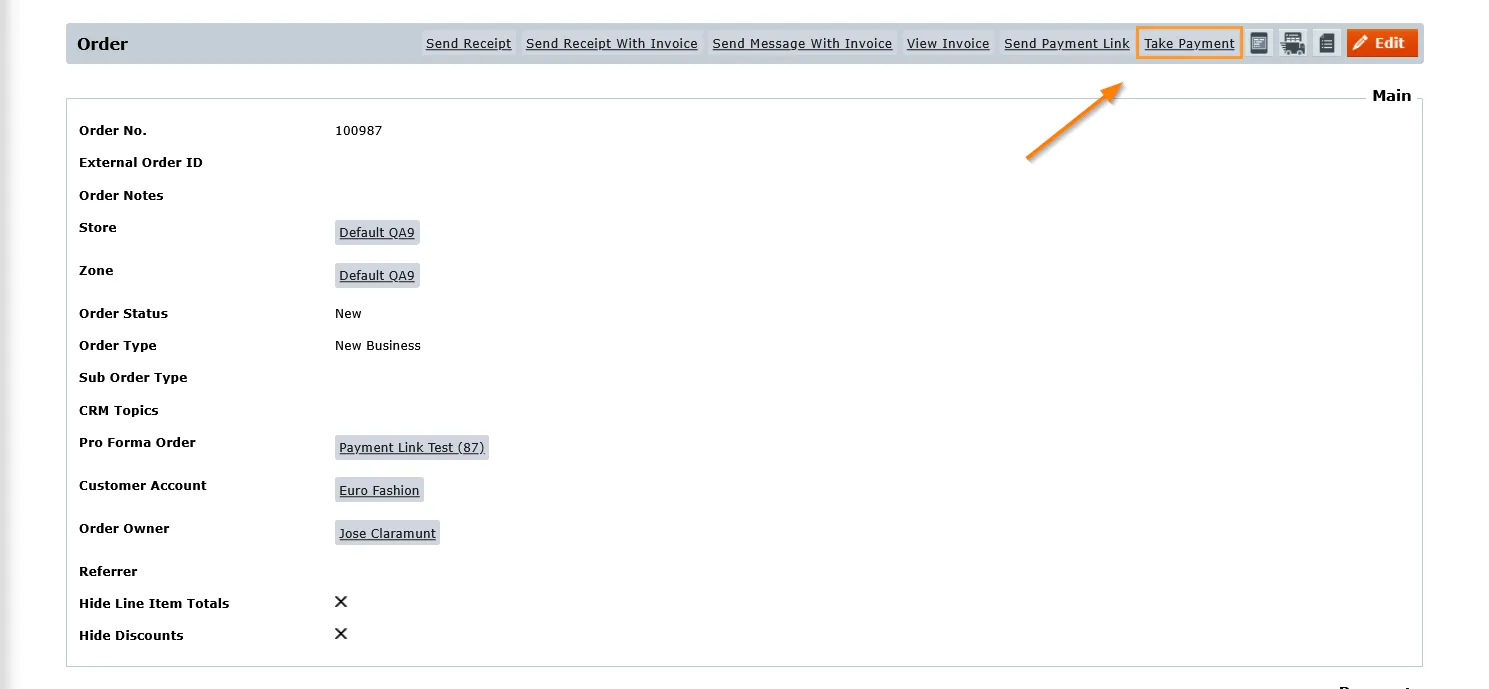
Affino will redirect the user either to GoCardless or the Stripe payment interface within the control screen (Order Payment screen). This choice is based on the payment method specified in the Pro Forma Order.

Once the payment is completed, the user is redirected back to the order. A confirmation receipt is then emailed to the purchaser to confirm the transaction.
Note: The payment method on the Pro Forma cannot be altered once the order is created.
Currently, this functionality is limited to GoCardless and Stripe, and does not include other payment gateways like PayPal or Worldpay. GoCardless is restricted to subscriptions, while Stripe can handle both one-off and subscription payments.
Sales Leaderboard
The Sales Leaderboard provides a graphic overview of all the Top Sales within a selected time frame (including weekly, monthly, current month, year to date amongst others).
It provide a graphic Insight into Sales spanning the following categories:
- Total Monthly Sales, with a previous months comparison
- Top Sales Team
- Top Sales People, by Business Unit (Brand)
- Most recent Sales, by Product Line (product range sold)
Did you find this content useful?
Thank you for your input
Thank you for your feedback

Driving business at some of the world's most forward thinking companies











Our Chosen Charity


Meetings:
Google Meet and Zoom
Venue:
Soho House, Soho Works +
Registered Office:
55 Bathurst Mews
London, UK
W2 2SB
© Affino 2026