 Customer Support
 Contact Sales

 About
About


Invoice Profile Guide
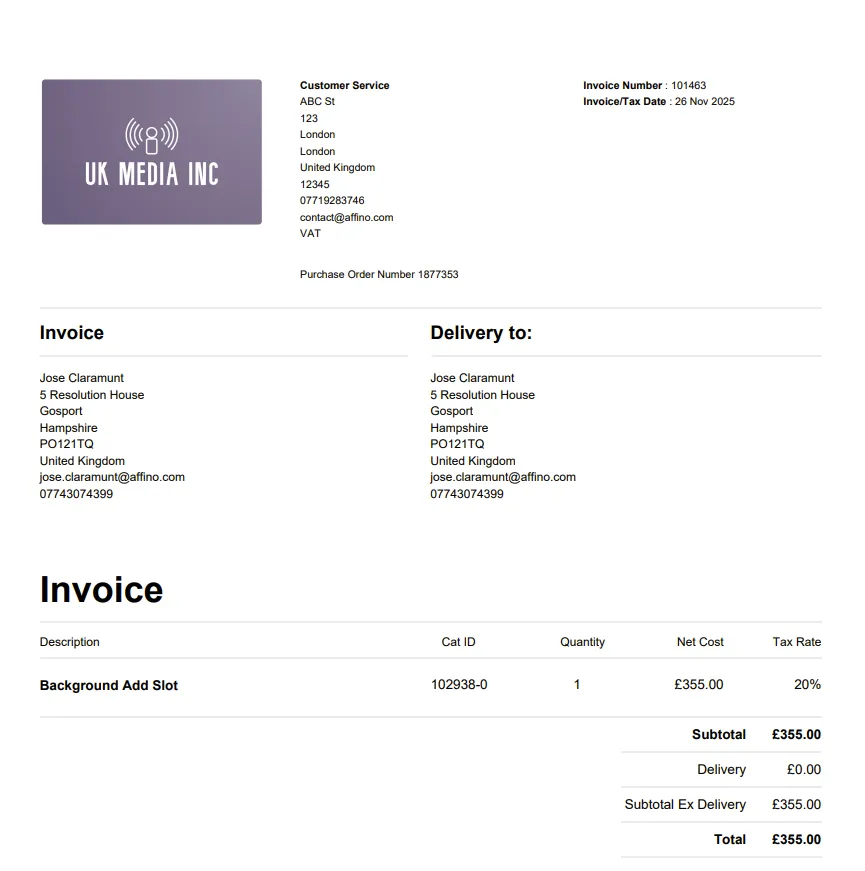
The Invoice Profile allows you to configure what to display on eCommerce Invoices, which are the store receipts customers get when they make a purchase.
Note: Invoices are totally different to Bills - Bills are manual entered, usually customer contract invoices - part of a manual billing process.
Show/Hide Fields and Labels
The Invoice Profile allows you to show or hide certain fields, which are then displayed on the invoice.
You can also add other details, such as text elements, logo, etc.
Main Panel:
- Name: Enter Name to the Profile
- Description: Enter a description of the profile
- Invoice Logo: Upload a logo for this invoice profile if not selected, the logo on the Store Profile will be used This is particularly useful, where you are creating and sending Pro Forma invoices for different Product Lines (brands)
- Edition: Select to display on the Pro Forma Invoice / Invoice PDF
- Fulfilment Date: Select to display on the Pro Forma Invoice / Invoice PDF
- Store Address Details: Select to display on the Pro Forma Invoice / Invoice PDF
- Store Logo: Select to display on the Pro Forma Invoice / Invoice PDF
- Pro Forma / Invoice Number: Select to display on the Pro Forma Invoice / Invoice PDF
- Order Ref: Select to display on the Invoice PDF
- Invoice/Tax Date: Select to display on the Pro Forma Invoice / Invoice PDF
- Payment Due Date: Select to display on the Pro Forma Invoice This is displayed below the Invoice/Tax Date on the invoice
- Payment Terms: Select to display on the Pro Forma Invoice This is displayed below the Payment Due Date on the invoice
- Company VAT No: Select to display on the Pro Forma Invoice This is displayed below the Payment Terms
- Account: Select to display on the Pro Forma Invoice This is displayed below Company VAT No
- Salesperson: Select to display the Salesperson This is taken from the Pro Forma Order Owner and displayed below Account
- Billing Address: Select to display on the Pro Forma Invoice / Invoice PDF
- Customer Email: Select to display on the Pro Forma Invoice / Invoice PDF
- PO Number: Select to display on the Pro Forma Invoice / Invoice PDF
- Invoice Status Font Size: Select the font size for the status label on the Pro Forma Invoice / Invoice PDF This is the text label to the right of the Invoice Title, ie PAID IN FULL or This is not a tax invoice (Options are Medium and Large)
- Terms - Pro Forma Invoice: Select to display on the Pro Forma Invoice PDF
- Terms - Invoice: Select to display on the Invoice PDF
- Cat ID: Select to display on the Pro Forma Invoice / Invoice PDF
- Teaser: Select to display on the Pro Forma Invoice / Invoice PDF
- Description: Select to display on the Pro Forma Invoice / Invoice PDF
- Quantity: Select to display on the Pro Forma Invoice / Invoice PDF
- Net Cost: Select to display on the Pro Forma Invoice / Invoice PDF
- Order Date: Select to display on the Pro Forma Invoice / Invoice PDF
- Paid: Select to display on the Invoice PDF
- Payment Method: Select to display on the Invoice PDF
- Transaction No: Select to display on the Invoice PDF
- Discount Information: Select to display on the Pro Forma Invoice / Invoice PDF
- Show Tax Rate: Select to display the Tax Rate column per line item on the Invoice
- Subtotal: Select to display on the Pro Forma Invoice / Invoice PDF
- Delivery: Select to display on the Pro Forma Invoice / Invoice PDF
- Subtotal Inc Delivery: Select to display on the Pro Forma Invoice / Invoice PDF
- Total Tax: Select to display on the Pro Forma Invoice / Invoice PDF
- Total: Select to display on the Pro Forma Invoice / Invoice PDF
- Store Bank Details (Pro Forma Invoice): Select to display on the Pro Forma Invoice PDF
- Store Bank Details (Order Invoice): Select to display on the Order Invoice PDF
- Store Bank Details Position: Select where to display the Store Bank details on the invoice
- Agreement Signature: Select to display the Name, Position, Signature, Date and agreement statement on the Pro Forma Invoice
- Hide My Account Link: Select to hide the Email My Account Link text item displayed on the receipt
- Footer: Select to display on the Pro Forma Invoice / Invoice PDF
Main Panel (Labels)
- Account Label: Enter title for Account.
- Bank Details Label: Enter title for Bank Details
- Cat ID Label: Enter title for Cat ID
- Company VAT No. Label: Enter title for Company VAT No.
- Delivery Label: Enter title for Delivery
- Description Label: Enter title for Description
- Discount Label: Enter title for Discount
- Invoice Label: Set the title for the Invoice.
- Invoice Notes Label: Enter title for Invoice Notes
- Invoice Number Label: Enter title for Invoice Number
- Invoice/Tax Date Label: Enter title for Invoice/Tax Date
- Net Cost Label: Enter title for Net Cost
- Order Date Label: Enter title for Order Date
- Order Ref Label: Enter title for Order Ref
- P.O. Number Label: Enter title for P.O. Number
- Paid Label: Enter title for Paid
- Payment Due Date Label: Enter title for Payment Due Date.
- Payment Method Label: Enter title for Payment Method
- Payment Terms Label: Enter title for Payment Terms.
- Pro Forma Invoice Label:Set the title for the Pro Forma Invoice.
- Pro Forma Invoice Number Label: Enter title for Pro forma Invoice Number
- Quantity Label: Enter title for Quantity
- Renewal Invoice Label: Set the title for the Renewal Invoice.
- Salesperson Label: Set the title for the Salesperson.
- Subtotal Inc Delivery Label: Enter title for Subtotal Inc Delivery
- Subtotal Label: Enter title for Subtotal
- Terms Label: Enter title for Terms
- Total Label: Enter title for Total
- Total Tax Label:Enter title for Total Tax
- Transaction No Label: Enter title for Transaction No
Main Panel (Bank & Payment Details)
- Store Bank Details: Enter Store Bank Details to be displayed in the invoice
- Additional Information: Enter any additional information required on the invoice This appears below the Total price
- Payment Methods: Select the payment methods to be shown on the Pro Forma Invoice, use Ctrl/Cmd-Click to select multiple options
- Card Details: Select to display the Card Entry details on the Pro Forma Invoice
- Card Types: Select the card types to be shown on the Pro Forma Invoice, use Ctrl/Cmd-Click to select multiple options These will be shown if Card Details is selected
- CVV: Select to display CVV field on the Pro Forma Invoice
- Footer Banner: Footer Banner Upload an image placed below the footer text There is a maximum height limit of 160 pixels
- Footer Text: Enter Footer Text to be displayed in the invoice
Invoice Messages
Invoice Messages are used to define and manage the default messaging content that accompanies invoices, particularly Pro Forma and Order invoices, when they are sent to customers.
These messages include the email subject, message body, sender details, and message templates that are used to format the communication.
- Default Sender: Select the Sender for sending out the Pro Forma Invoice and Order Invoice
- Default CC Recipient: Select the CC recipient when sending out the Pro Forma Invoice or Order Invoice
Select the default message settings for sending out Pro Forma, Renewal and Order Invoices:
- Name: set a name for the message
- Subject: set a subject for the message
- Default Message: choose a default message (this is optional) (Default Messages are found under 'Control > Marketing > Default Messages')
- Message Template: choose the message template for the message
- Invoice Type: select the type of invoice (Pro Forma, Renewal, Order)
- Default: make the selected message as the efault
- Delete Row: select to delete. You can delete the row by clicking on "Delete Selected" or add another one by clicking on "Add Row"
Payment and Purchase Options
Payment Link:
- Payment Link Subject: Enter the email message Subject for the Payment Link notification
- Payment Link Message Body: Enter the email message for a Payment Link sent to the order recipient
- Payment Links are available for Pro Forma Orders where the Payment Method is either Stripe or GoCardless. You can use the following placeholders [_First_Name_], [_Last_Name_], [_Account_], [_Order_Number_], [_Order_Date_], [_Payment_Link_URL_], [_Amount_].
Purchase Order:
- Attach Order Invoice: Select to attach the Order Invoice with the Acknowledgement / Purchase Order email
Did you find this content useful?
Thank you for your input
Thank you for your feedback

Driving business at some of the world's most forward thinking companies











Our Chosen Charity


Meetings:
Google Meet and Zoom
Venue:
Soho House, Soho Works +
Registered Office:
55 Bathurst Mews
London, UK
W2 2SB
© Affino 2026